
If you’re a small business owner using QuickBooks Online and want to get a better handle on your finances, creating a budget is one of the best steps you can take. It helps you track spending, plan for the future, and avoid surprises.
This short guide walks you through how to build a budget in QuickBooks Online, even if your books are a little messy.
Why Use a Budget in QuickBooks Online?
A budget gives you more than just numbers, it gives you control.
Here’s how it helps:
-
Clarity: See exactly where your money is going.
-
Planning: Make better decisions based on real data.
-
Tracking: Spot issues early by comparing your actuals to your plan.
-
Confidence: Reduce financial stress by staying informed.

Before You Start: Prep Your QuickBooks File
A budget is only as good as the data behind it. Here’s what you need:
-
Clean records: If your books are full of uncategorized or duplicate transactions, fix those first.
-
Organized chart of accounts: Make sure income and expense categories make sense.
-
Historical data: Use the past 12 months to guide your estimates.
-
Future plans: Think about any expected changes, new hires, major purchases, or sales bumps.
Step 1: Open the Budgeting Tool
-
Log in to QuickBooks Online.
-
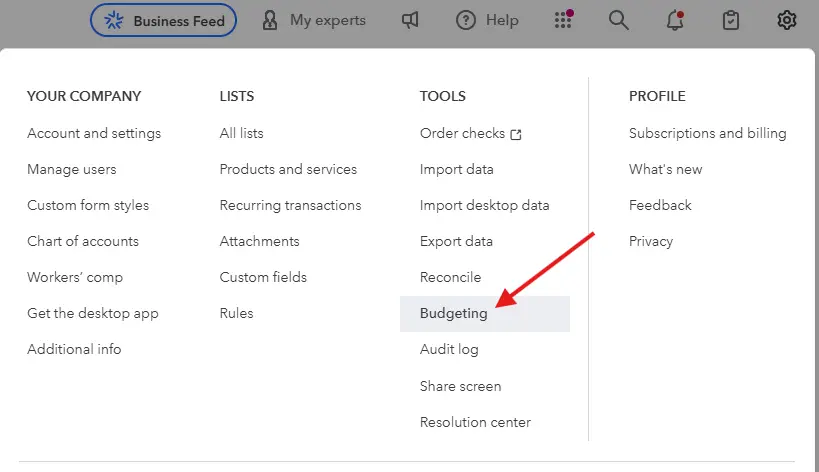
Click the Gear icon (⚙️) in the upper right.
-
Under “Tools,” select Budgeting.
-
Once you are in the budgeting screen click “Create Budget.”
Step 2: Set Up Your Budget Options
Once you click “Create Budget,” you’ll be taken to a screen where you choose how your budget will be built. Here’s what you’ll see:
-
Budget Type
Choose Profit and Loss (this is the most common option for small businesses). -
Period
Select the fiscal year you’re budgeting for, for example, FY 2025 (Jan 2025 – Dec 2025). -
Budget Format
-
Consolidated: Use this for a simple, overall business budget.
-
Subdivided: Use this if you want to break it down by class, customer, or location.
-
-
Pre-fill Data
You can choose to start with actual numbers from your current year or begin from scratch.-
For example, “Actuals 2025 (YTD)” will auto-fill based on your current year’s data.
-
Choosing a Setup Option
At the bottom, you’ll see two options:
-
Custom Budget – Create from scratch
Select this if you want to manually build your budget inside QuickBooks, using dropdowns and fields to enter income and expense estimates. This is the best choice for most small business owners, especially if you’re using your existing QuickBooks data. -
Import Budget
Choose this if you’ve already created your budget in Excel or another tool and want to upload it into QuickBooks Online. This can save time for more advanced users or those working with external accountants.
➡️ Tip: If you’re budgeting in QuickBooks Online for the first time, stick with Custom Budget, it’s straightforward and easy to adjust later.
When you’re ready, click Next.

Step 3: Enter Your Income and Expenses
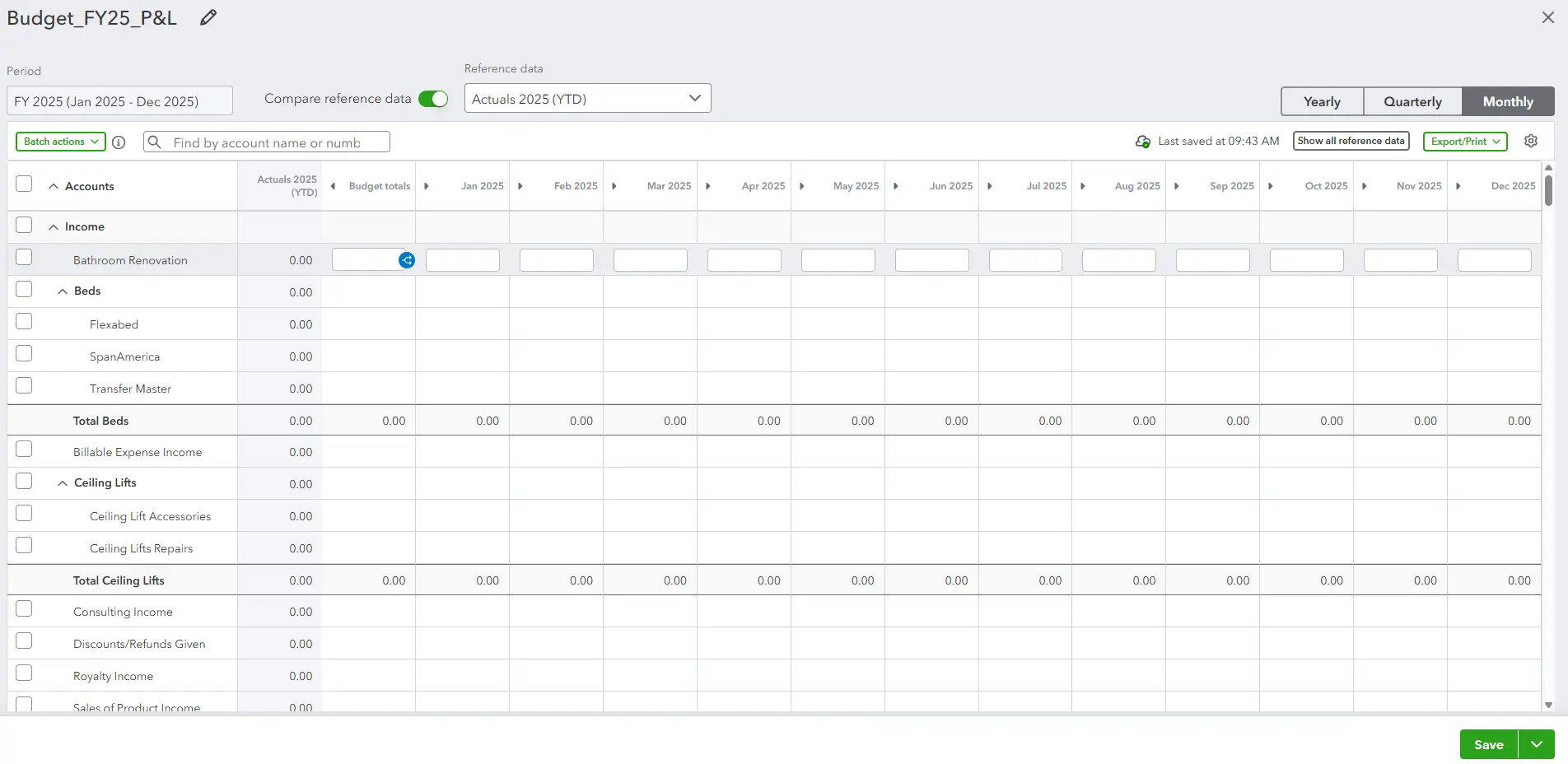
Now you’re ready to build your budget. You’ll see a spreadsheet-like screen with rows for your accounts (like income and expenses) and columns for each month of the year.
Here’s how to use this screen:
Understanding the Layout
-
Accounts (on the left): These come directly from your Chart of Accounts, including categories like Sales, Services, Rent, Utilities, etc.
-
Columns (across the top): Each month of your fiscal year. You’ll enter your estimates here.
-
Reference Data: If you chose to pre-fill with actuals, you’ll see your year-to-date figures as a guide.
-
Frequency View: You can toggle between Monthly, Quarterly, or Yearly at the top right depending on how detailed you want to get.
How to Fill Out Your Budget
1. Estimate Income
Start with your revenue accounts:
-
Look at your past income (especially if you pre-filled data).
-
Adjust for seasonal changes if your business has busy or slow months.
-
If you’re launching something new or expect growth, increase your numbers accordingly.
💡 Example: If you usually earn $5,000/month from service income, but expect 10% growth, you might enter $5,500 for each month or gradually increase it.
2. Estimate Expenses
Next, fill in your expected costs:
-
Fixed costs (same every month): rent, software subscriptions, insurance.
-
Variable costs (change based on sales or projects): supplies, payroll, marketing.
-
Occasional expenses: If something only happens once a year (like an annual fee), enter it in that specific month or spread it out monthly.
💡 Tip: You can reference your Profit & Loss report or actuals column to get realistic estimates.
Tools You Can Use
-
Batch Actions: Select multiple rows if you want to copy or fill data quickly.
-
Search Bar: Find specific accounts by name if your list is long.
-
Export/Print: Save a copy for your records or share it with your team.
-
Save Dropdown: You can just save or choose Save and Close when you’re done.


Step 4: Review and Fine-Tune Your Budget
Before moving on, take a few minutes to look over your budget.
Things to Check:
-
Are income and expenses realistic?
If something looks too high or too low, adjust it. -
Does your projected income cover your expenses?
A budget should help you stay profitable — or at least plan for shortfalls. -
Any large gaps or missing categories?
Make sure all key expenses (like taxes, insurance, and software subscriptions) are included.
You can come back and edit your budget anytime:
-
Click the Gear icon (⚙️)
-
Choose Budgeting
-
Select the budget you created
💡 Pro Tip: It’s better to slightly overestimate expenses and underestimate income. That way, surprises are easier to handle.
Step 5: Keep It Updated
Things change your budget should too.
-
Review monthly: Adjust if your income or expenses shift.
-
Edit easily: Go back to the Budgeting tool to update your numbers
Final Tips for Better Budgeting
-
Start with clean data.
-
Be realistic — don’t overestimate revenue or underestimate costs.
-
Break it down monthly for better control.
-
Don’t set it and forget it — check in regularly.