
Running a small business is a whirlwind of passion, dedication, and countless hats you wear every day. You’re the visionary, the marketer, the operations manager – and, often, the bookkeeper. You chose QuickBooks Online (QBO) for its promise of streamlined finances, ease of use, and instant insights. But let’s be honest: the reality can sometimes feel less like “streamlined” and more like “overwhelmed.”
We get it. The initial enthusiasm for QBO can quickly turn into a dread of uncategorized transactions, confusing reports, and the nagging feeling that your books aren’t quite right. That pressure, that lack of clarity, can suck up valuable time and peace of mind you desperately need to focus on what you do best: growing your business.

But what if you could take back control? What if you could transform QuickBooks Online from a source of stress into a powerful tool for financial clarity and strategic decision-making?
At Cloud5 Accounting, we believe every small business owner deserves that peace of mind. That’s why we’ve compiled a comprehensive guide to essential QuickBooks Online Tips & Tricks designed to simplify your QBO experience, boost efficiency, and ensure your financial data is accurate and actionable. Get ready to gain back time, reduce stress, and truly understand your numbers.
I. Laying the Foundation: Essential Setup & Regular Habits
A strong building needs a solid foundation, and your QuickBooks Online account is no different. These initial QuickBooks tips focus on setting up core functionalities correctly and establishing routine habits that prevent future headaches.
Tip 1: Connect Your Bank & Credit Card Accounts (and Keep Them Connected!)
This might seem obvious, but it’s the single most impactful step for automating your bookkeeping. Connecting your bank and credit card accounts allows QuickBooks Online to import your transactions daily, eliminating the need for manual data entry.
- Why it’s crucial: Automation is key to saving time and reducing errors. Daily imports mean fewer missing transactions and more accurate, up-to-date information.
- Steps:
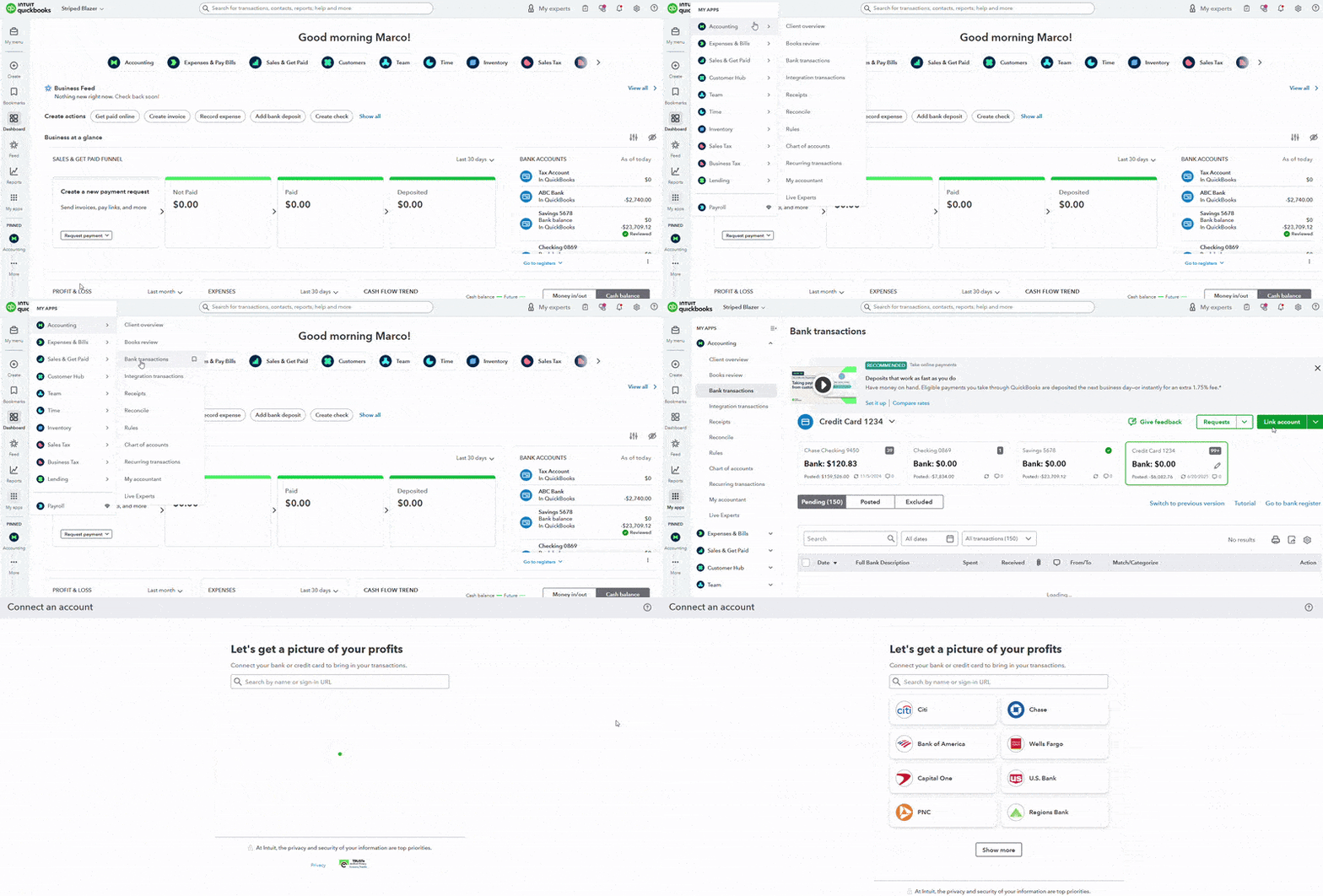
- From your QBO dashboard, navigate to “Apps”> “Accounting” and click on the “Bank transactions” tab.
- Click “Link account” or the “Add account” button.
- Search for your bank or credit card company and follow the prompts to log in securely with your online banking credentials.
- Select the accounts you want to connect (checking, savings, credit cards).
- Proactive Maintenance: Periodically check your “Banking” tab for any connection errors (e.g., “requires attention”). Banks often update security protocols, which can sometimes break the connection. Reconnecting promptly prevents transaction backlogs.
Tip 2: Master Bank Rules for Automated Categorization
Once your accounts are connected, the real magic of automation begins with bank rules. Instead of manually categorizing every transaction, you can teach QBO to do it for you.
- Explanation: Bank rules are instructions you give QuickBooks Online to automatically categorize, tag, or assign payees to recurring transactions based on specific criteria (e.g., description, amount).
- Steps:
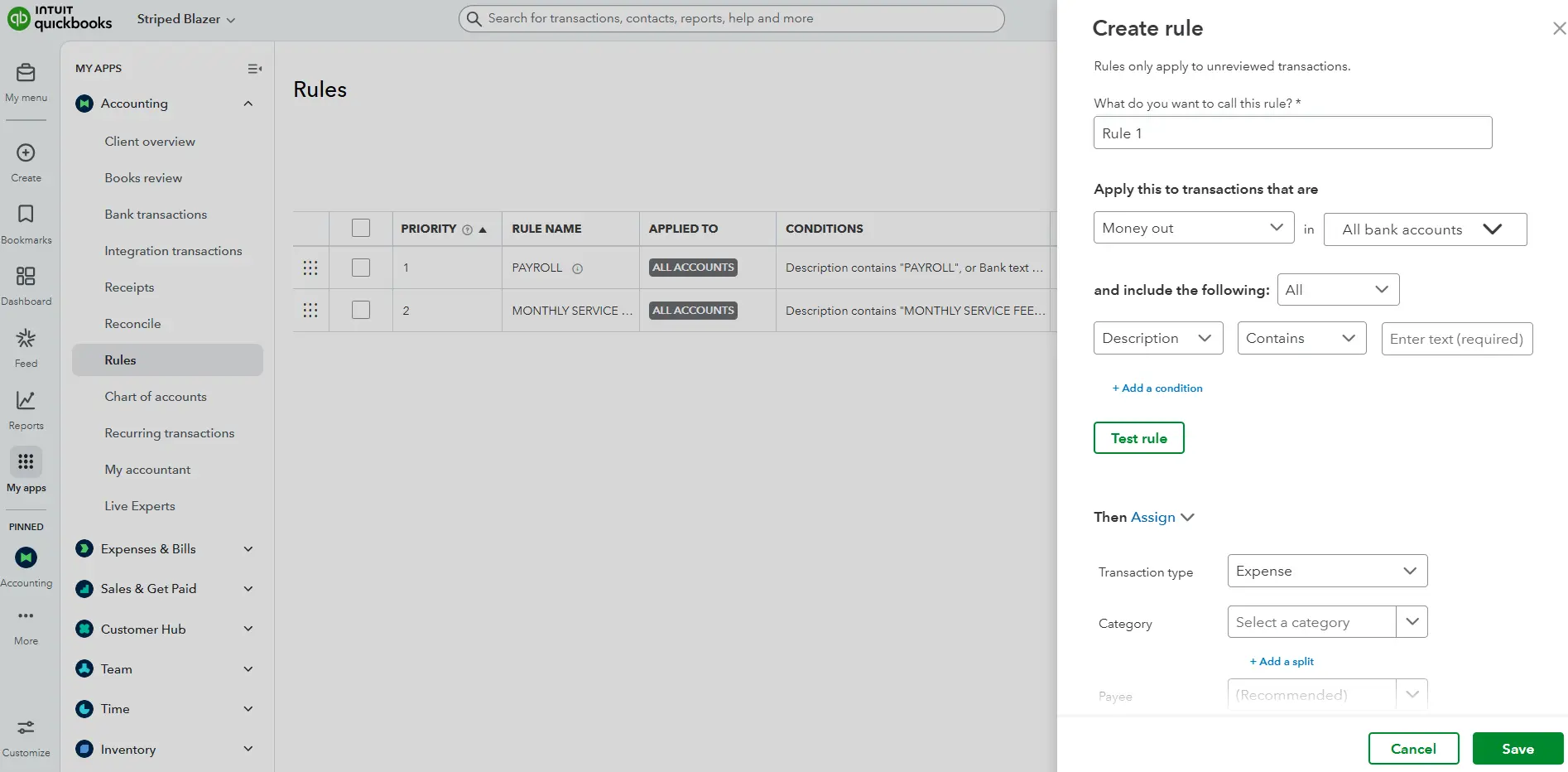
- Go to the “Apps”>”Accounting” and click on the “Rules” sub-tab.
- Click “New Rule.”
- Name Your Rule: Something descriptive, like “Software Subscription – [Software Name].”
- Specify Money In/Out: Most rules will be for “Money Out.”
- Conditions: This is where you tell QBO what to look for. Use “Bank Text,” “Description,” or “Amount.” For example, if you pay for “Zoom Video Communications” every month, you’d set a condition where “Description” “contains” “Zoom.”
- Action:
- Transaction Type: Usually “Expense.”
- Category: Select the appropriate account from your Chart of Accounts (e.g., “Software & Subscriptions”).
- Payee: Assign the correct vendor (e.g., “Zoom”).
- Click “Save.”
Examples: Create rules for recurring software subscriptions, utility bills, rent payments, or regular vendor purchases. Start with your most frequent transactions to see the biggest time savings.
Tip 3: The Non-Negotiable Habit: Regular Bank Reconciliation
Bank reconciliation is arguably the most critical QuickBooks tip for maintaining accurate financial records. It’s the process of matching the transactions in your QBO account with your bank or credit card statements.
- Why it’s the bedrock of accurate books:** Reconciliation ensures that every transaction is accounted for, catches errors (duplicates, missing entries), prevents fraud, and confirms your cash balance is correct. It makes tax time infinitely easier.
- Steps:
- Click the “Gear Icon”
 (top right) and select “Reconcile.”
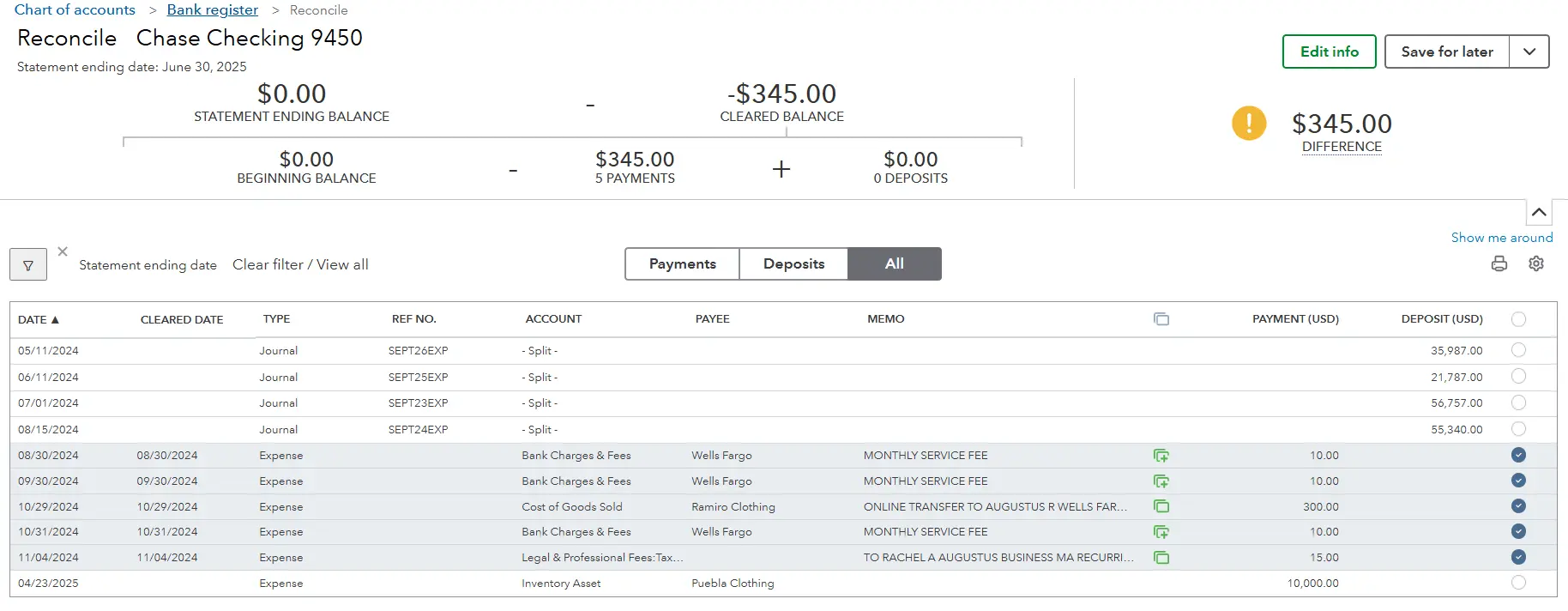
 - Choose the account you want to reconcile.
- Enter the “Ending Balance” and “Ending Date” from your bank statement.
- QuickBooks will display a list of transactions. Check off each transaction that appears on your bank statement.
- Troubleshooting: If your “Difference” isn’t zero:
 (top right) and select
 - Double-check:** Ensure your beginning balance in QBO matches your statement’s beginning balance.
- Look for missing transactions: Did you forget to record a check? Is there an imported transaction you haven’t categorized yet?
- Spot duplicates: Are there identical transactions entered twice?
- Incorrect amounts: Did you enter an amount incorrectly?
- Pro-Tip: Reconcile at least monthly, if not weekly for high-volume accounts. The smaller the reconciliation period, the easier it is to find discrepancies.
II. Daily Workflow Wisdom: Streamlining Your Operations
Beyond the foundational habits, these QuickBooks tips focus on optimizing your day-to-day use of QBO for maximum efficiency and clarity.
Tip 4: Efficient Invoice Management & Payment Tracking
Cash flow is the lifeblood of your small business. Mastering invoicing in QBO ensures you get paid on time and can accurately track your revenue.
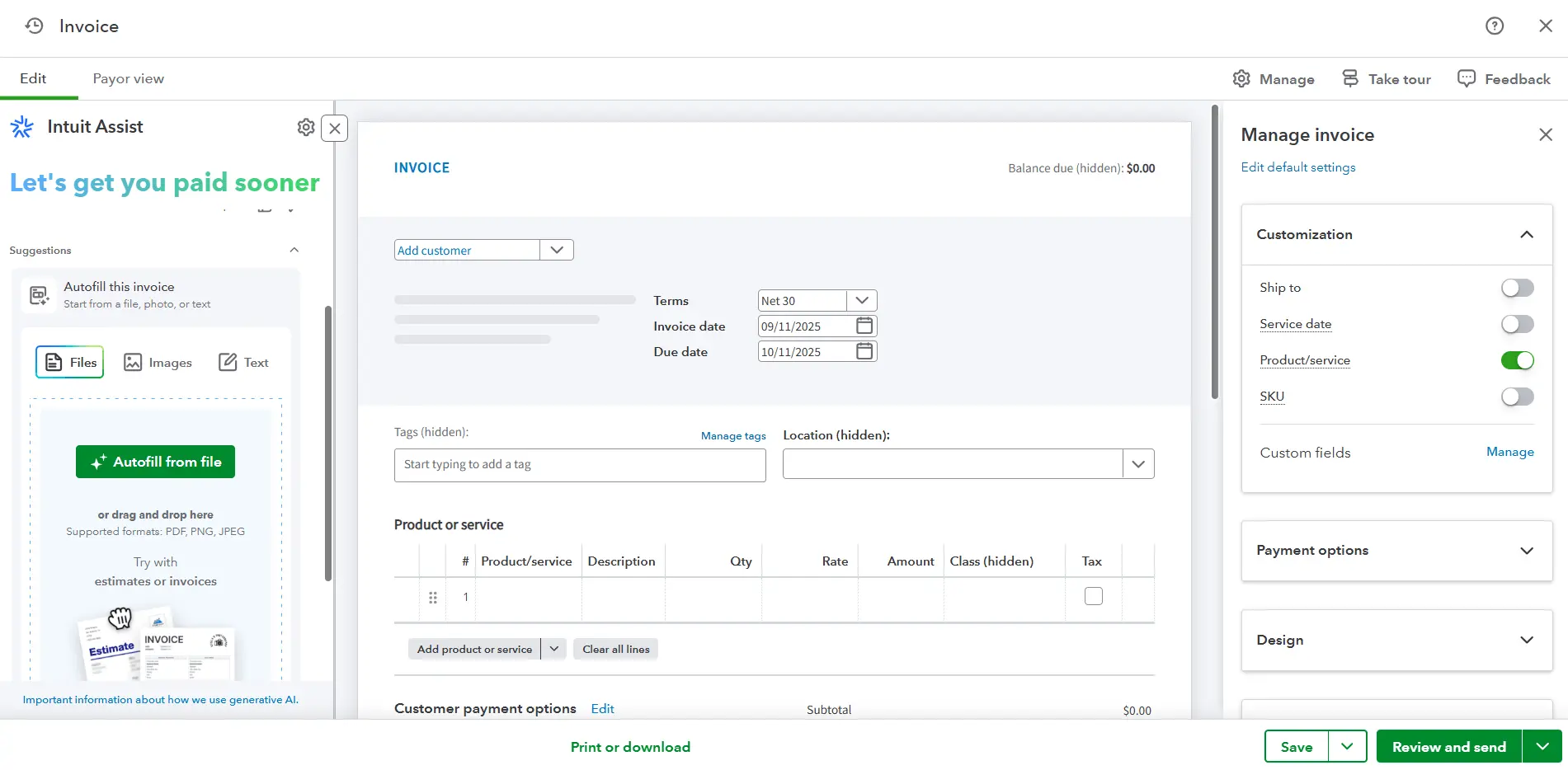
- Creating Professional Invoices:
- Go to the left panel and click on “Create” (top left) and select “Invoice.”
- Choose your customer, set payment terms (e.g., Net 30), and add your products/services.
- Customize: Add your logo, branding colors, and important notes.
Tracking Outstanding Invoices:
Regularly review your “Accounts Receivable Aging Summary” report (Reports > Who owes you). This shows you who owes you money and for how long.
Sending Automatic Reminders:
QBO can send automated email reminders for overdue invoices. Go to “Gear Icon” > “Account and Settings” > “Sales” > “Reminders.” This is a huge time-saver!
Recording Payments Accurately:
- When a payment comes in, open the invoice and click “Receive Payment.”
- Deposit the payment to “Undeposited Funds” if you typically deposit multiple payments together, then record the bank deposit. If it’s a direct deposit for a single invoice, you can deposit directly to your bank account. Consistency here prevents confusion.
Tip 5: Taming Your Vendor Bills & Expenses (Accounts Payable)
Just as crucial as collecting money is managing what you owe. Effectively tracking your bills helps you manage cash flow and claim all eligible deductions.
Entering Bills vs. Direct Expense Entry:
Enter Bills (+ Create > Bill): Use this for expenses you’ll pay later. It accurately reflects your liabilities (Accounts Payable) and allows you to track specific due dates.
Expense (+ Create > Expense): Use this for payments made immediately (e.g., debit card purchases, small cash payments).
Scheduling Payments: When you enter a bill, you can mark it for payment later. Use the “Pay Bills” feature to manage multiple vendor payments efficiently.
Monitoring What You Owe: Regularly run the “Accounts Payable Aging Summary” report (Reports > What you owe) to stay on top of your liabilities and avoid late fees.


Tip 6: Categorization Clarity: The Key to Meaningful Data
Correctly categorizing every transaction is fundamental. Poor categorization leads to inaccurate reports, missed tax deductions, and a frustrating experience. This is one of the most vital QuickBooks tips to get right.
- Common Pitfalls:
“Uncategorized Expense/Income”: These are red flags. Every transaction should have a clear purpose.
Commingling Personal & Business: Never categorize personal expenses as business expenses. Use “Owner’s Draw” for funds taken out for personal use, or “Owner’s Contribution” for personal funds used for business.
- Best Practices:
Consistency: Always use the same category for the same type of expense.
Use Sub-Accounts: For greater detail without cluttering your main Chart of Accounts (e.g., “Marketing: Online Ads,” “Marketing: Print Ads”).
Understand Your Chart of Accounts: Familiarize yourself with the default QBO accounts and customize them as needed (Gear Icon > Chart of Accounts).
Importance for Tax Preparation: Accurate categorization is the backbone of proper tax reporting. Your accountant will thank you!
III. Advanced Insights & Avoiding Common Pitfalls
Once you’ve got the basics down, these QuickBooks tips elevate your QBO game, helping you extract deeper insights and proactively avoid costly mistakes.
Tip 7: Harnessing the Power of Reports
QuickBooks Online generates a wealth of reports that provide a snapshot of your business’s financial health. Don’t just let them sit there; use them to make informed decisions
- Key Reports Small Businesses Should Regularly Check:
Profit & Loss (P&L) Statement: Shows your income and expenses over a period, revealing your net profit or loss. Crucial for understanding profitability.
Balance Sheet: A snapshot of your assets, liabilities, and equity at a specific point in time. Shows what you own, what you owe, and your net worth.
Cash Flow Statement: Tracks the movement of cash in and out of your business, regardless of when income was earned or expenses incurred. Essential for liquidity.
- Customizing and Saving Reports:
QBO allows you to customize report date ranges, columns, and filters. You can then “Save Customization” to easily run the same report in the future.
Pro-Tip: Schedule specific reports to be emailed to you regularly (e.g., P&L weekly, Balance Sheet monthly) to stay consistently informed.
Tip 8: Understanding and Utilizing Tags & Classes (for Deeper Insights)
For businesses needing more granular data, QBO’s Tags and Classes features are powerful QuickBooks tricks.
What they are and when to use them:
- Classes: Used to track different segments of your business (e.g., departments, product lines, locations). Each transaction can be assigned to one class.
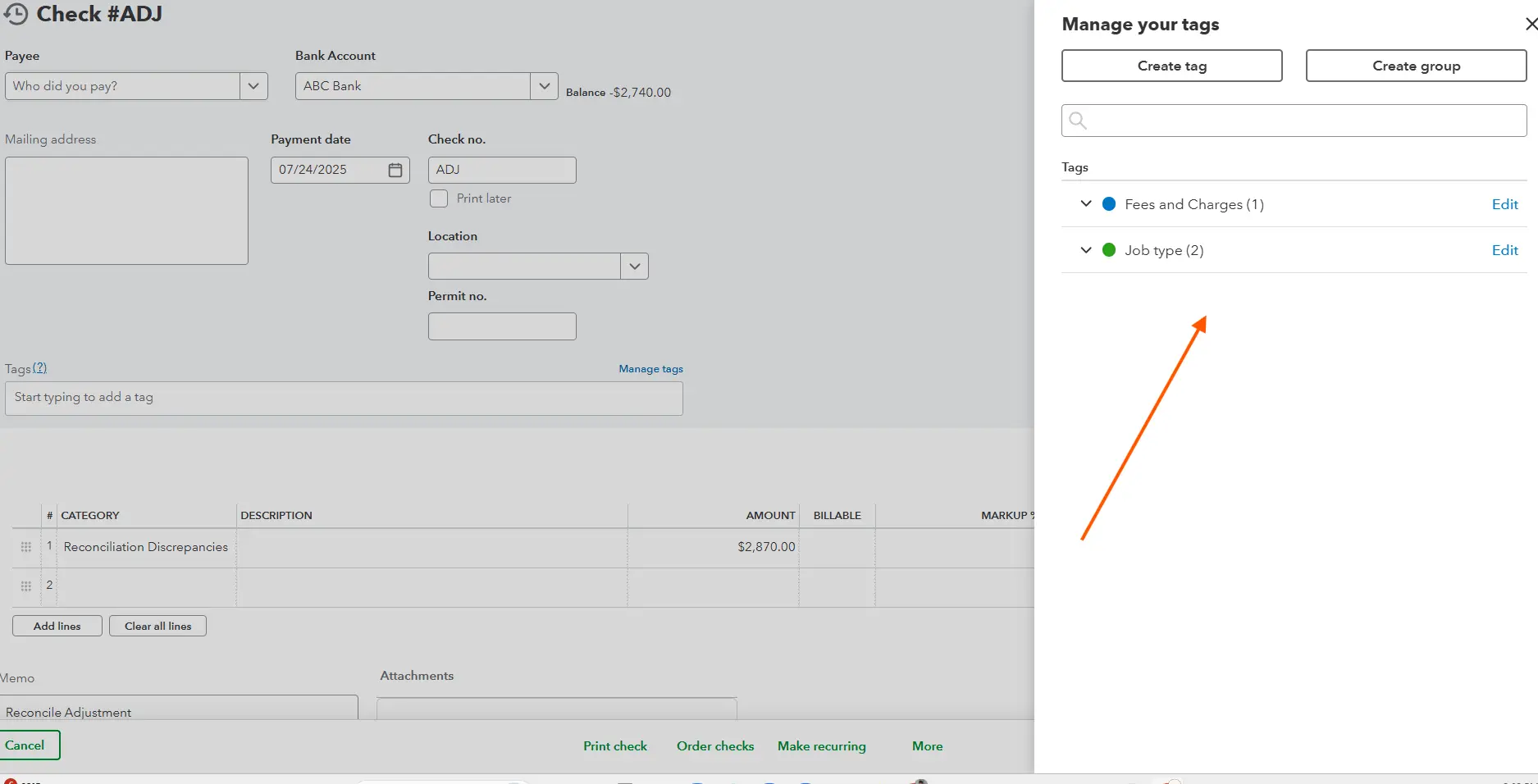
- Tags: More flexible, allowing you to track data points across transactions (e.g., marketing campaigns, specific projects, specific events). You can assign multiple tags to a single transaction.
Setup and Application:
- Enable these features in “Gear Icon” > “Account and Settings” > “Advanced.”
- Once enabled, you’ll see fields for “Class” or “Tags” on transactions like invoices, expenses, and bills.
- Run reports filtered by Class or Tag to gain specific insights into the performance of those segments.
Tip 9: Decluttering Your Lists: Vendors, Customers, Products/Services
An uncluttered QuickBooks is an efficient QuickBooks. Regularly review and clean up your lists.
- Archiving Inactive Items: For vendors, customers, or products/services you no longer use, mark them as “Inactive” instead of deleting them. This keeps historical data while removing clutter from active lists.
- Merging Duplicates: If you accidentally created two entries for the same vendor or customer, you can merge them. This ensures consistency and prevents misapplied transactions.
- To merge customers: Go to “Sales” > “Customers.” Select the customer you want to keep, then edit them and change their display name to match the duplicate, QBO will ask if you want to merge.
- To merge vendors: Go to “Expenses” > “Vendors.” Similar process.
- Impact on Report Clarity: Clean lists lead to clean reports and easier navigation.
Tip 10: The Peril of Personal & Business Commingling
This cannot be stressed enough: keep your personal and business finances separate. Mixing them is one of the most common and damaging QuickBooks mistakes.
Reinforce Separation: Ideally, all business transactions go through business accounts, and personal transactions through personal accounts.
How to Handle Accidental Commingling (the right way):
- Owner’s Draws: If you use business funds for personal expenses, record it as an “Owner’s Draw” (Equity account).
- Owner’s Contributions: If you use personal funds to pay for business expenses, record it as an “Owner’s Contribution” (Equity account) or as a loan from yourself to the business.
Why it’s a critical QuickBooks mistake to avoid: It complicates tax preparation, makes it difficult to assess true business profitability, and can even jeopardize your limited liability protection in a legal dispute.
IV. Proactive Measures for Peak Performance & Tax Readiness
These final QuickBooks tips focus on maintaining the health of your books year-round, preparing you for tax season with confidence.
Tip 11: Regular Review of Your Books (Monthly/Quarterly)
Don’t wait until year-end to dive into your books. Proactive review catches errors early and keeps you informed.
Why it’s better than year-end panic: Small issues are easy to fix. Large, compounded issues require extensive clean-up (which we can help with!).
What to Look For:
- Unusual or Large Transactions: Do they make sense? Are they categorized correctly?
- Missing Data: Are all your sales recorded? Are there any missing bills?
- Incorrect Categorizations: Are there transactions in “Uncategorized Expense” or other generic accounts.
- Balance Sheet Review: Ensure balances in asset and liability accounts (like loans or fixed assets) seem reasonable and reflect reality.
- Using the “Accountant Tools” (if applicable or for your professional): If you or your accountant have QuickBooks Online Accountant access, utilize tools like the “Reclassify Transactions” feature to quickly fix categorization errors across multiple transactions.
Tip 12: Streamlining Year-End with QuickBooks
With diligent application of these QuickBooks tips, year-end will be a breeze, not a burden.
- Generating Necessary Reports for Your Tax Preparer: Your accountant will typically need your Profit & Loss Statement, Balance Sheet, and sometimes the General Ledger. Having these ready and accurate saves time and money.
- Reviewing Asset/Liability Accounts: Ensure fixed assets (equipment, vehicles) are recorded correctly with depreciation, and liabilities (loans, credit lines) reflect actual balances.
- Ensuring All Income/Expenses are Recorded: Do a final sweep for any missing invoices, bills, or bank transactions that weren’t imported or entered.
Conclusion: Empower Your Business with Pristine Books
Mastering QuickBooks Online doesn’t have to be a dream. By implementing these essential QuickBooks tips and tricks, you can transform your QBO experience, gain greater control over your finances, and unlock the insights needed to propel your small business forward.
Remember, a well-maintained QuickBooks Online system isn’t just about compliance; it’s about empowerment. It’s about having the time to innovate, the clarity to strategize, and the peace of mind to truly enjoy your entrepreneurial journey.
If the thought of tackling these tasks still feels daunting, or if you’re battling a QuickBooks Online file that needs significant attention, know that expert help is just a click away.