
Unpaid invoices happen, maybe a client disappeared, went out of business, or just stopped responding. Whatever the reason, leaving those invoices open in QuickBooks Online (QBO) makes your books inaccurate.
The good news: writing off an invoice in QuickBooks Online is simple once you know the steps. Here’s how to clean things up and keep your financials accurate.
Why You Should Write Off Unpaid Invoices
Writing off bad debt isn’t just about clearing your books, it’s about keeping your reports and taxes right.
-
Accurate reports: Unpaid invoices inflate your income and Accounts Receivable. Writing them off shows your true numbers.
-
Possible tax deduction: Bad debt can often be claimed as a business expense (check with your tax professional).
-
Cleaner books: You’ll have a clearer picture of what’s really collectible and what’s not.
When to Write Off an Invoice
You should only write off an invoice when it’s truly uncollectible. Here are common situations:
-
You’ve made several attempts to collect, reminders, calls, even a demand letter.
-
The customer has gone out of business or filed for bankruptcy.
-
The cost of collecting is higher than what’s owed.
-
The invoice is over 120–180 days overdue and clearly not recoverable.
If there’s still a chance the client will pay, don’t write it off yet. Keep following up first.
How to Write Off an Invoice in QuickBooks Online Step by Step
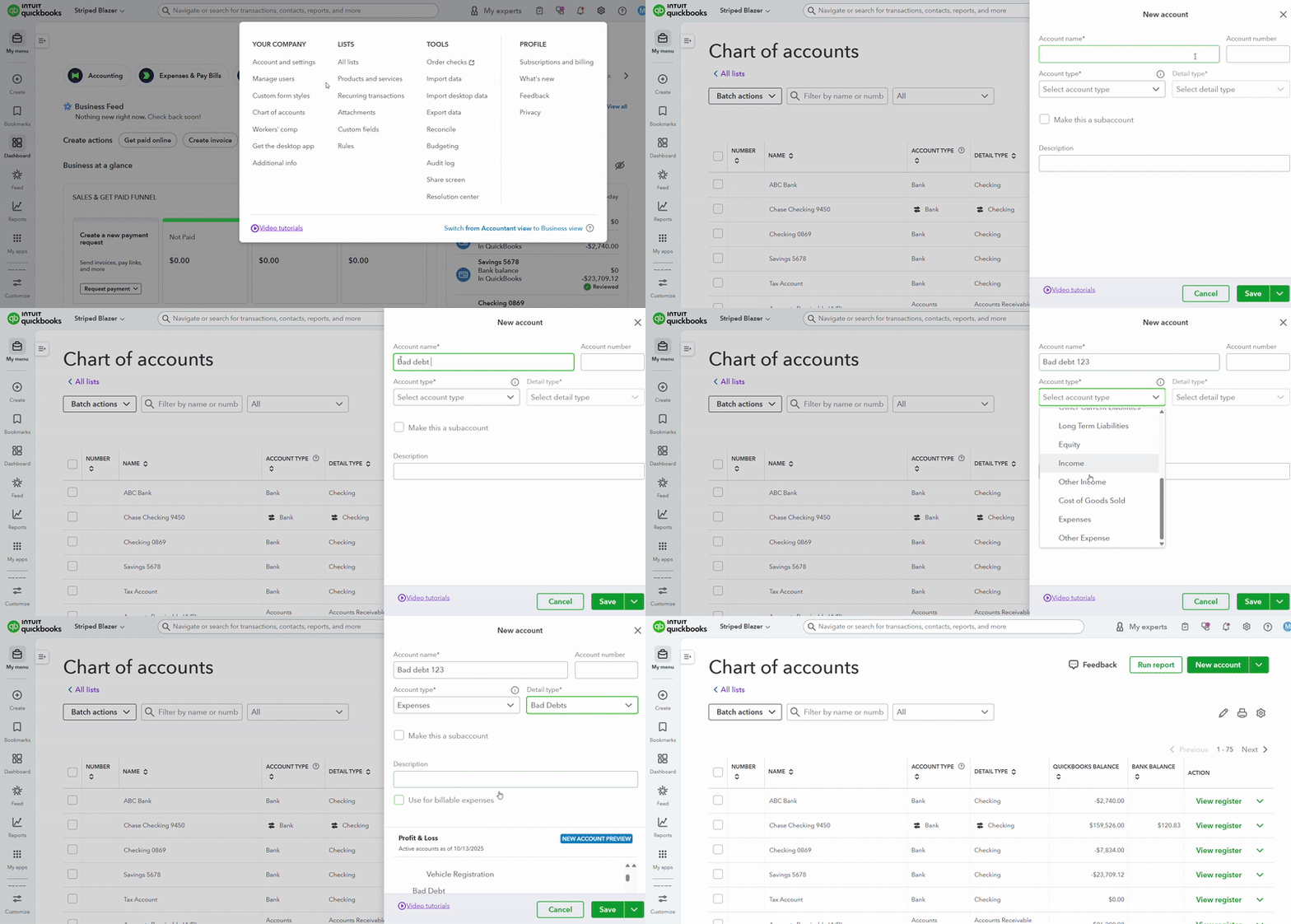
Step 1: Create a “Bad Debt Expense” Account
Before you can write off an invoice, set up an account to track the loss.
-
Click the Gear icon (
 ) → Chart of Accounts.
 -
Click New.
-
Under Account Type, choose Expenses.
-
Under Detail Type, select Bad Debts (or “Other Business Expenses”).
-
Name it Bad Debt Expense → Save and Close.
 ) → Chart of Accounts.
This account will record the expense when you write off the invoice.
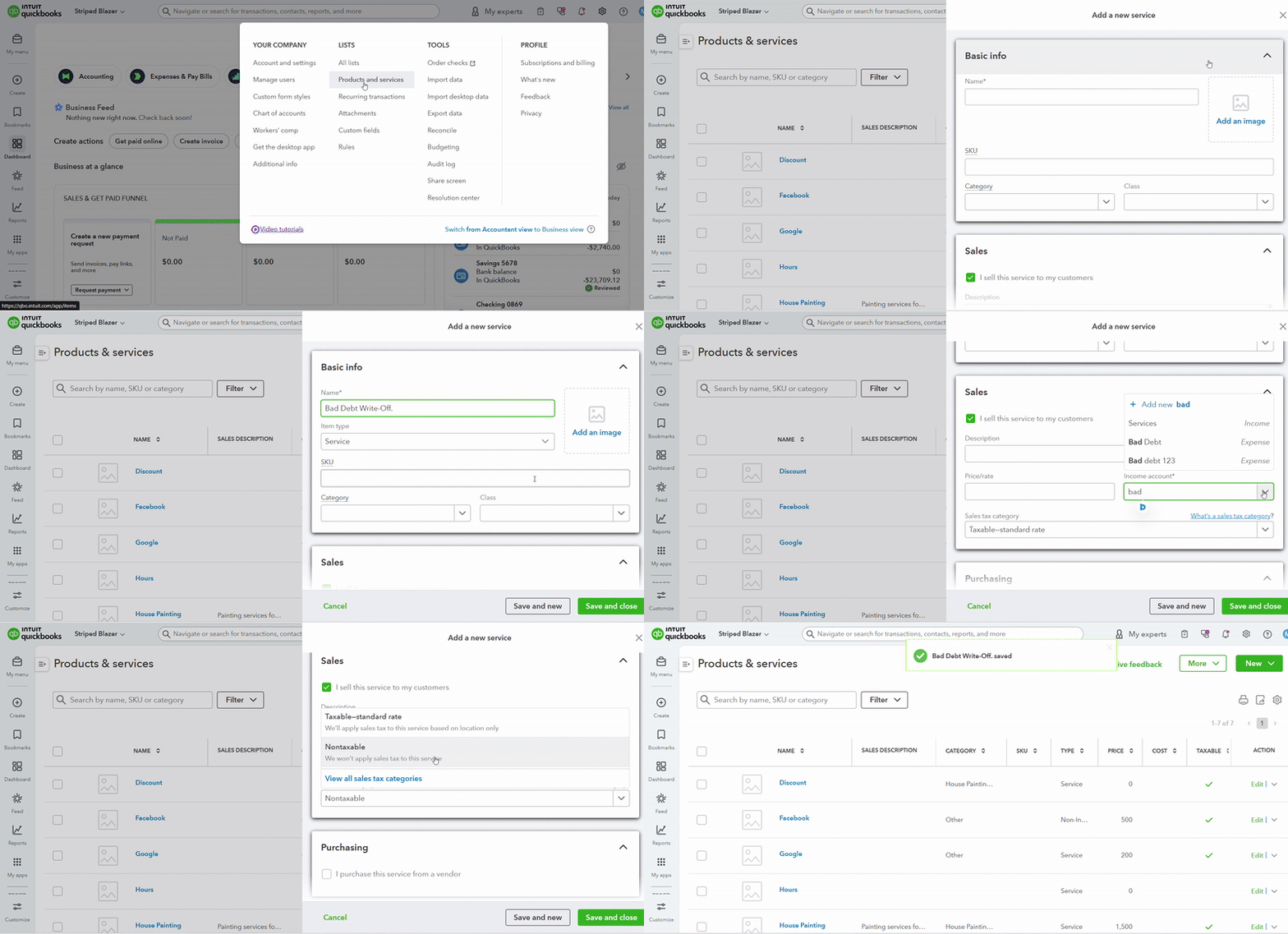
Step 2: Create a “Bad Debt Write-Off” Service Item
Next, you’ll make a service item to link the bad debt expense to your invoices.
-
Click the Gear icon (⚙️) → Products and Services.
-
Click New → Service.
-
Name it Bad Debt Write-Off.
-
Under Income Account, select Bad Debt Expense.
-
Leave price at $0 and uncheck “Taxable.”
-
Click Save and Close.
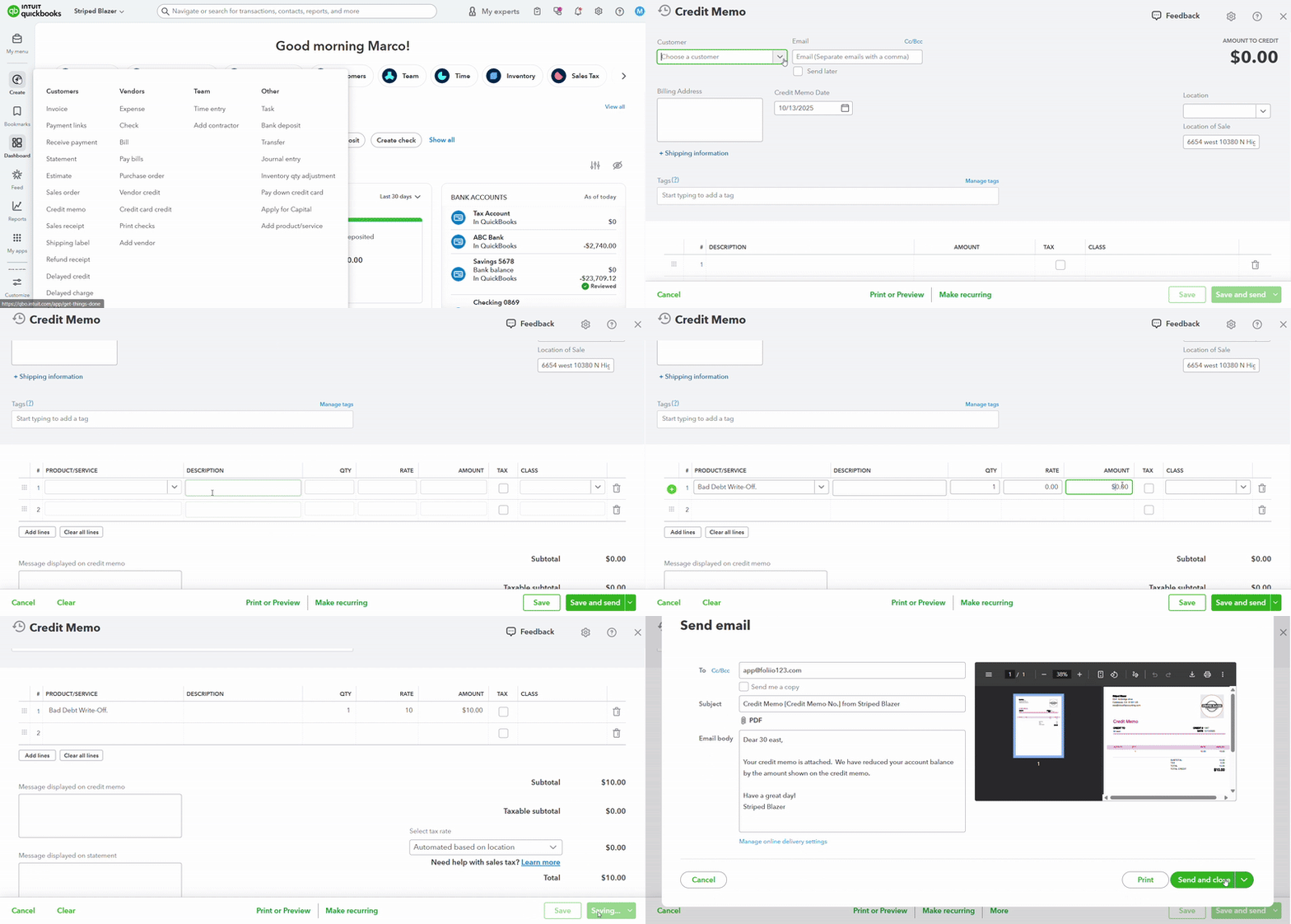
Step 3: Create a Credit Memo for the Invoice
Now, apply the write-off through a credit memo.
-
Click + New → Credit Memo.
-
Choose the Customer with the unpaid invoice.
-
In Product/Service, select Bad Debt Write-Off.
-
Enter the amount you’re writing off.
-
Add a note in the Memo field (e.g., “Invoice #1045 written off as bad debt”).
-
Click Save and Close.


Step 4: Apply the Credit Memo to the Invoice
To zero out the balance:
-
Click + New → Receive Payment.
-
Select the Customer.
-
Check both the Invoice and the Credit Memo.
-
The Amount Received should show $0.00.
-
Click Save and Close.
Your invoice will now show as Paid, and your bad debt expense will appear on your Profit & Loss report.
How to Avoid Future Write-Offs
Bad debts can’t always be prevented, but these habits help:
-
Ask for deposits before large projects.
-
Send invoices quickly after work is done.
-
Use automated reminders in QuickBooks.
-
Set clear payment terms and stick to them.
-
Follow up early when payments go overdue.
Final Thoughts
Unpaid invoices are frustrating, but they’re also part of doing business. By learning how to write off an invoice in QuickBooks Online, you’ll keep your books clean, your reports accurate, and your stress lower.
And if your books are full of old invoices or messy records, Cloud5 Accounting can help you get back on track — fast.