
Tax season can be a daunting time for many small business owners. Among the various forms and deadlines, the QuickBooks Online 1099 Report often causes particular confusion and stress. Do you feel overwhelmed by tracking contractor payments, ensuring accuracy, and meeting IRS deadlines? You’re not alone.
This comprehensive guide aims to simplify the QBO 1099 report offering clear, actionable steps for confident navigation.
What Are 1099s and Why Do They Matter?
A Form 1099 is an information return that reports certain types of payments made by a business during the year. For most small businesses, the primary focus is the Form 1099-NEC (Nonemployee Compensation). This form is used to report payments of $600 or more made to individuals who are not your employees for services performed in the course of your trade or business. This typically includes:
- Freelancers
- Independent contractors
- Attorneys
- Accountants
- Consultants
- Gig workers
Why do they matter?
- IRS Compliance: Failing to accurately file 1099s can result in penalties from the IRS.
- Accurate Tax Reporting: Both for your business (claiming expenses) and for your contractors (reporting income).
- Transparency: It provides a clear record of payments for all parties involved.
💡 Note: Payments made by credit card or PayPal are reported by the processor on a 1099-K, so you don’t include them in your 1099-NEC.
How to generate a QuickBooks Online 1099 Report
Step 1: Prepare Before Filing
The accuracy of your 1099 report depends on your setup. Here’s what to do:
-
Collect W-9s
Always request a completed W-9 from contractors before paying them. This gives you their name, address, and tax ID. -
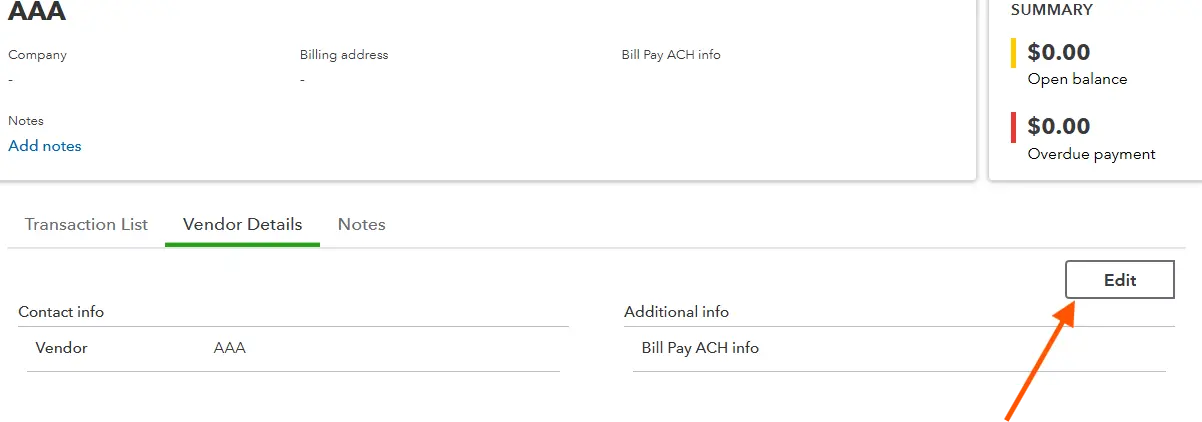
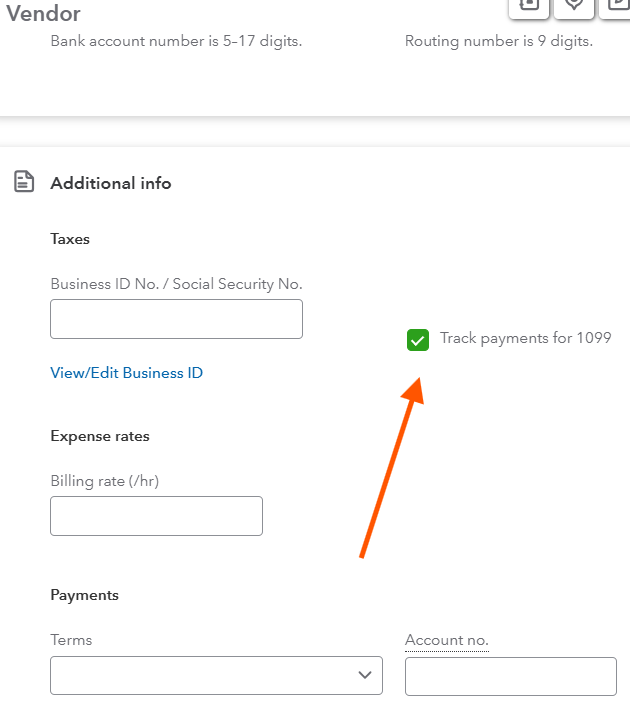
Mark Vendors as 1099 Contractors
-
Go to Vendors in the left side menu
-
Open the contractor’s profile → Edit
-
Check Track payments for 1099
-
Enter their tax ID from the W-9
-
-
Map Your Expense Accounts
Only service-related accounts (like “Contractor Expenses” or “Legal & Professional Fees”) should be included in 1099 totals. Supplies or rent don’t count.
Step 2: Generate Your QuickBooks 1099 Report
-
Go to My Apps>Expenses And Bills> 1099s
-
Click Prepare 1099s
-
Select the tax year
-
Review your company info
-
Confirm contractor details (make sure tax IDs are entered)
-
Map expense accounts to Box 1: Nonemployee Compensation
-
Review payment totals for each contractor
If something looks off, click into the contractor’s name to review the transactions making up the total.
Step 3: File Your 1099s
QuickBooks partners with e-filing services, giving you three options:
-
E-file through QuickBooks (recommended): Quick and handled for you (fee applies).
-
Print and mail: You handle mailing and IRS submission yourself.
-
Hybrid: Some services print and mail to contractors while you e-file with the IRS.
📅 Deadline: January 31st — both to file with the IRS and to send copies to contractors.
Troubleshooting Common Issues
-
Contractor missing from report?
Check if they’re marked as 1099-eligible and paid at least $600. -
“Missing Tax ID” error?
Request and enter their W-9. -
Wrong payment totals?
Confirm expense categories are mapped correctly and that credit card/PayPal payments are excluded.
Final Thoughts
The QuickBooks Online 1099 report doesn’t have to be a source of stress and confusion. By understanding the basics, meticulously preparing your QuickBooks Online data throughout the year, and following the specific steps outlined in this guide, you can confidently generate accurate 1099s for your independent contractors. Remember, good bookkeeping habits are your best defense against tax-time headaches.
If the thought of tackling this on your own still feels overwhelming, know that cloud5 accounting is just a click or call away. We’re dedicated to helping small businesses like yours achieve financial clarity and seamless operations. Reclaim your time and peace of mind this tax season.