
Managing bills can feel overwhelming when you’re running a small business. Between juggling customers, operations, and marketing, it’s easy for vendor payments to slip through the cracks. QuickBooks Online (QBO) makes it easier, but only if you know how to use it correctly.
This guide walks you through how to pay bills in QuickBooks Online, step-by-step. You’ll learn how to record, review, and pay bills accurately so your books stay organized, your cash flow stays clear, and you avoid costly mistakes.
Why Paying Bills Properly in QuickBooks Online Matters
Before diving in, here’s why using the bill and pay workflow (instead of recording expenses directly) matters:
-
Keeps cash flow clear: You’ll always know what’s due and when — helping you avoid missed or duplicate payments.
-
Ensures accurate reports: Your Balance Sheet and Profit & Loss stay correct, reflecting what you owe and what you’ve paid.
-
Improves vendor relationships: Paying on time builds trust and can lead to discounts or better terms.
-
Simplifies tax time: Clean records mean no scrambling for receipts or expense details in April.
How To Pay Bills In QuickBooks Online: Step-by-Step Guide
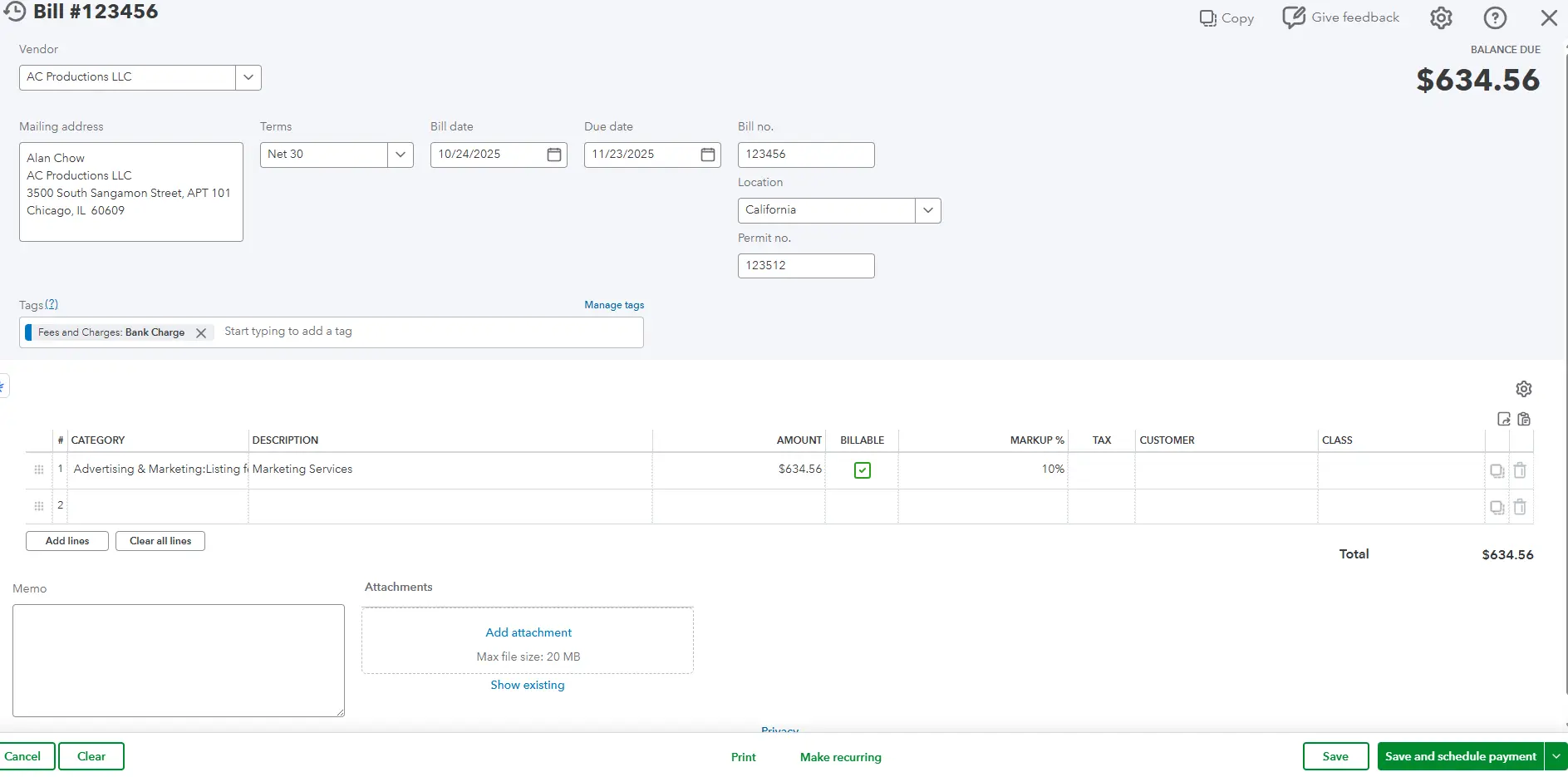
Step 1: Enter Bills When You Receive Them
Recording bills as soon as you get them creates a liability in QuickBooks, showing what you owe.
How to enter a bill:
-
In QuickBooks, click + Create → Bill under the Vendors section.
-
Choose your Vendor (add a new one if needed).
-
Fill in:
-
Bill date (from the invoice)
-
Terms (e.g., Net 30)
-
Due date (auto-calculated based on terms)
-
Bill number (from the vendor invoice — prevents duplicates)
-
-
Under Category details:
-
Select the Expense account (e.g., Utilities, Office Supplies, Rent).
-
Add a brief description.
-
Enter the amount.
-
-
Attach a copy of the bill (PDF or photo).
-
Click Save and close (or Save and new if entering more bills).
✅ Tip: Attaching the vendor invoice helps you stay audit-ready and saves time later.
Step 2: Review What You Owe
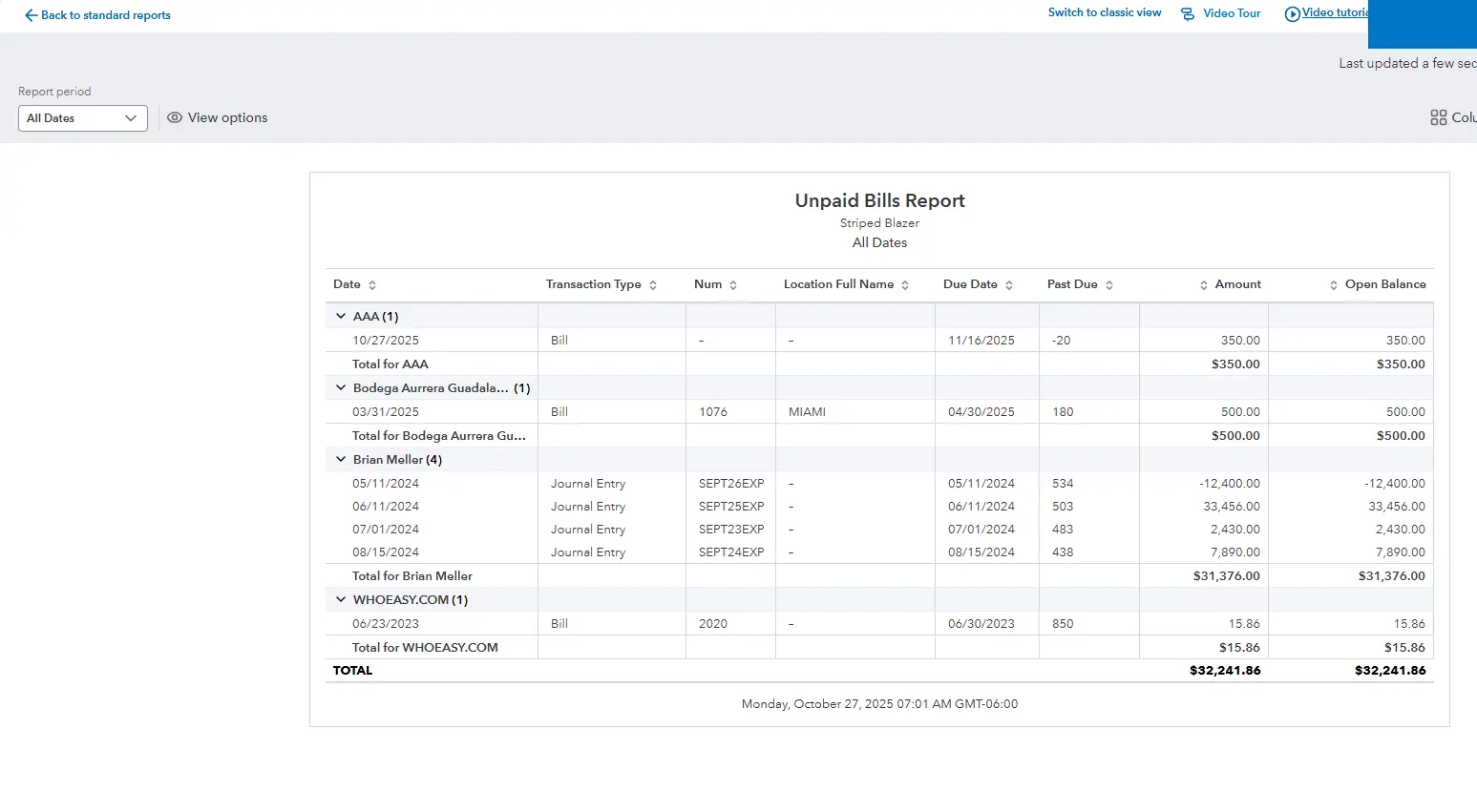
Before paying, check your list of unpaid bills. This helps plan cash flow and prioritize payments.
Ways to review:
-
Go to Reports → Standard Rerports → What You Owe → Unpaid Bills to see open and overdue bills.
-
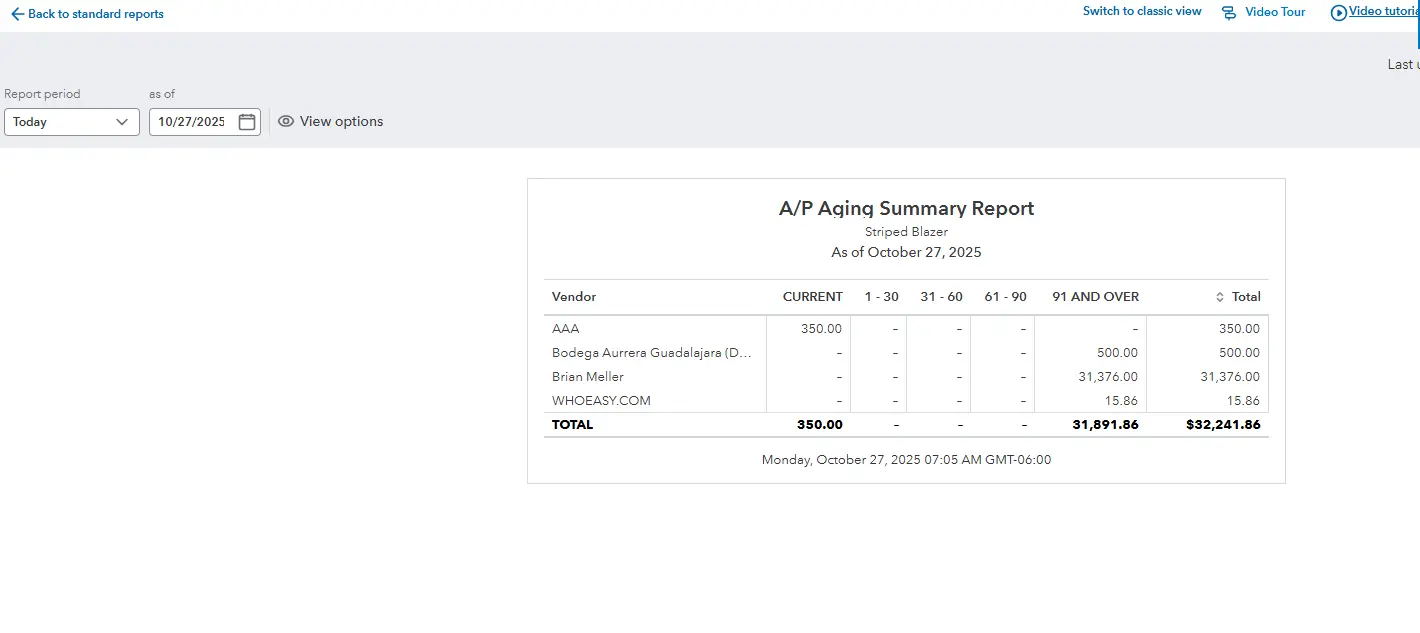
For a summary, run the Accounts Payable Aging Summary report:
-
Go to Reports → Standard Reports → What You Owe → Accounts Payable Aging Summary.
-
 Tip: Use this report to quickly see which bills are due soon and avoid late fees.
Step 3: Pay Your Bills
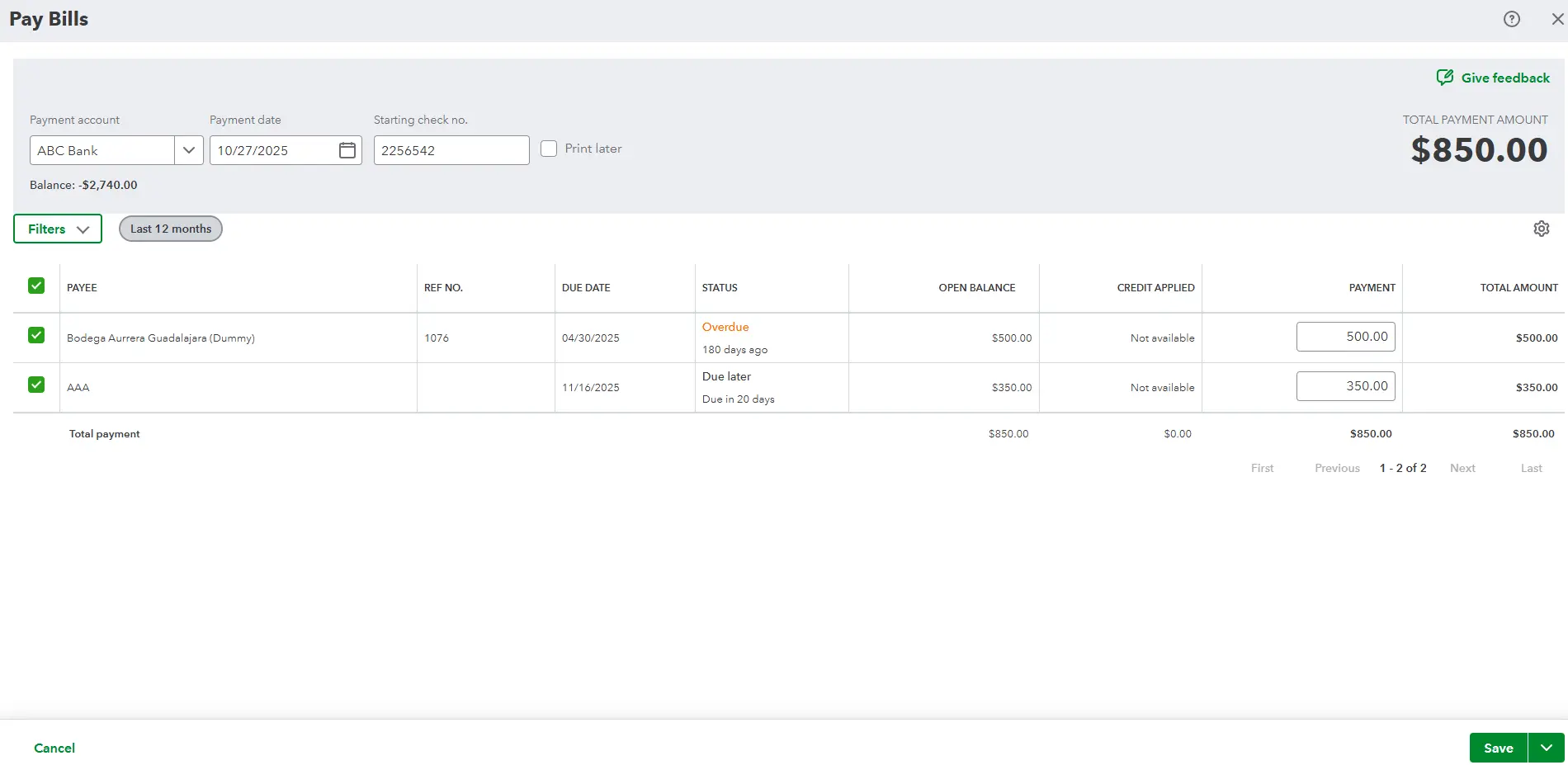
Now it’s time to record payments. Using the “Pay Bills” tool ensures QuickBooks reduces your Accounts Payable correctly.
How to pay bills in QBO:
-
Click + Create → Pay Bills.
-
Choose the Payment account (bank or credit card).
-
Enter the Payment date (the day you’ll pay).
-
If paying by check:
-
Confirm the starting check number or add “EFT,” “ACH,” or “CC” for digital payments.
-
-
Check the box next to each bill you want to pay.
-
Adjust the “Amount to pay” if you’re making a partial payment.
-
Click Save and close or Save and print if printing checks.
Tip: If you use QuickBooks Bill Pay (powered by Melio), you can pay vendors directly online from within QuickBooks.


Step 4: Match the Payment in Your Bank Feed
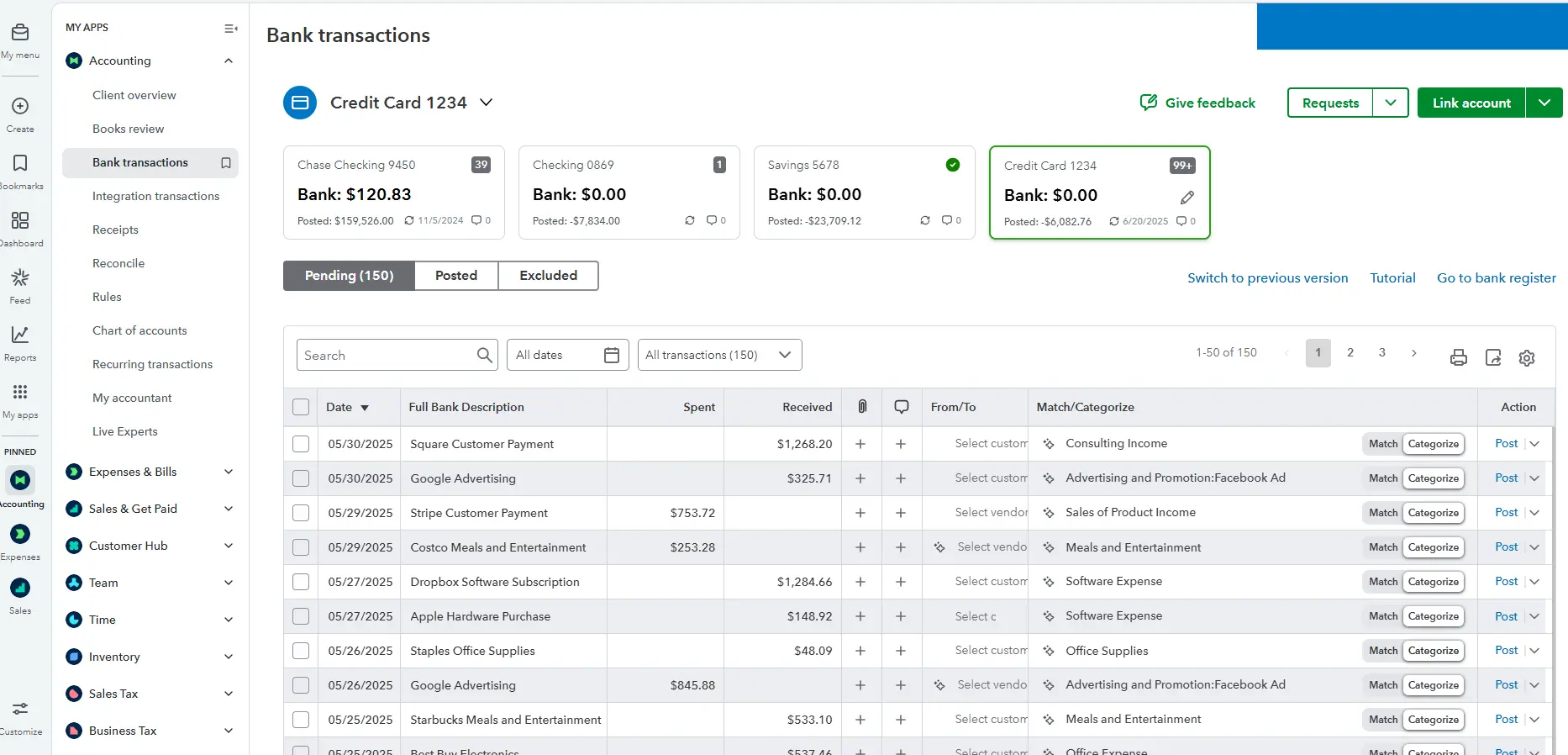
Matching connects the payment you recorded in QuickBooks to your actual bank transaction.
How to match:
-
Go to Banking → Transactions and select your bank account.
-
Under For Review, find the payment that cleared.
-
If QuickBooks finds a match, click Match to confirm.
If QuickBooks doesn’t find a match, double-check that you entered the bill payment correctly. Avoid adding a new transaction — this can create duplicates.
Common Mistakes to Avoid
Even with the right workflow, these errors are easy to make:
-
Paying bills directly from your bank: Always enter bills first in QBO. Paying directly bypasses Accounts Payable, causing inaccurate reports.
-
Duplicate payments: Happens when payments aren’t matched properly. Always verify in Pay Bills before paying.
-
Wrong expense categories: Misclassification leads to confusing reports. Review your Profit & Loss monthly.
-
Ignoring vendor credits: Enter vendor credits as soon as you receive them (+ Create → Vendor Credit) so they apply automatically next time.
-
Not reconciling regularly: Reconcile bank accounts monthly to catch mismatches early.
Pro Tips for Efficient Bill Management
-
Use recurring bills: For fixed monthly expenses like rent or subscriptions, click Make recurring on a bill.
-
Batch pay: Select multiple bills for the same vendor to pay all at once.
-
Take early payment discounts: Watch for terms like “2/10 Net 30.” Pay early to save money.
-
Review your A/P Aging report weekly: Stay on top of what’s coming due.
-
Attach receipts: Keeps your records clean and ready for taxes or audits.