
If you’re running a small business, sending estimates is often the first step in winning new work. A clear, professional estimate sets the tone, shows clients you’re organized, and helps you get paid faster. Luckily, QuickBooks Online makes it easy to create and send estimates that look great without needing to be a tech or accounting expert.
Here’s a step-by-step guide to help you get started.
What Is an Estimate in QuickBooks Online?
An estimate in QuickBooks Online is a document that shows potential clients the pricing and details of your services before any work begins. It’s not a bill or an invoice; it’s more like a formal quote.
Once your client approves the estimate, you can convert it into an invoice in just a few clicks.
Why Use Estimates in QBO?
-
Look more professional – Branded, clean, and accurate.
-
Speed up approvals – Clients can accept digitally.
-
Avoid pricing confusion – Everything is clearly laid out.
-
Save time – Turn approved estimates into invoices instantly.
How to Create an Estimate in QuickBooks Online
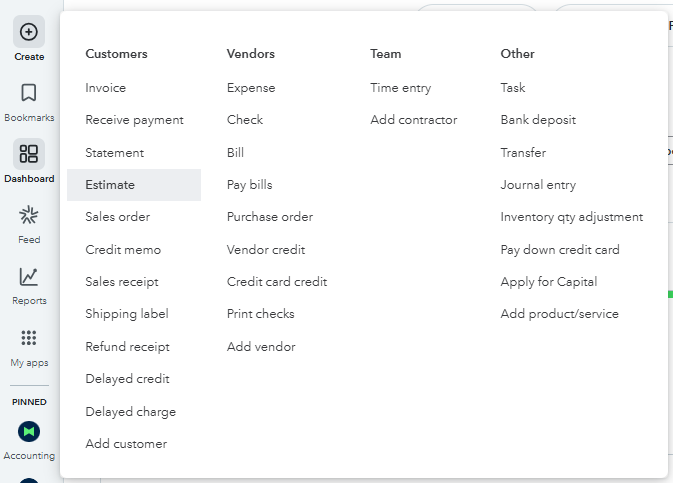
Step 1: Go to the Estimate Screen
- Log in to QuickBooks Online.
- Click Create + New in the left-hand menu.
- Select Estimate from the dropdown.
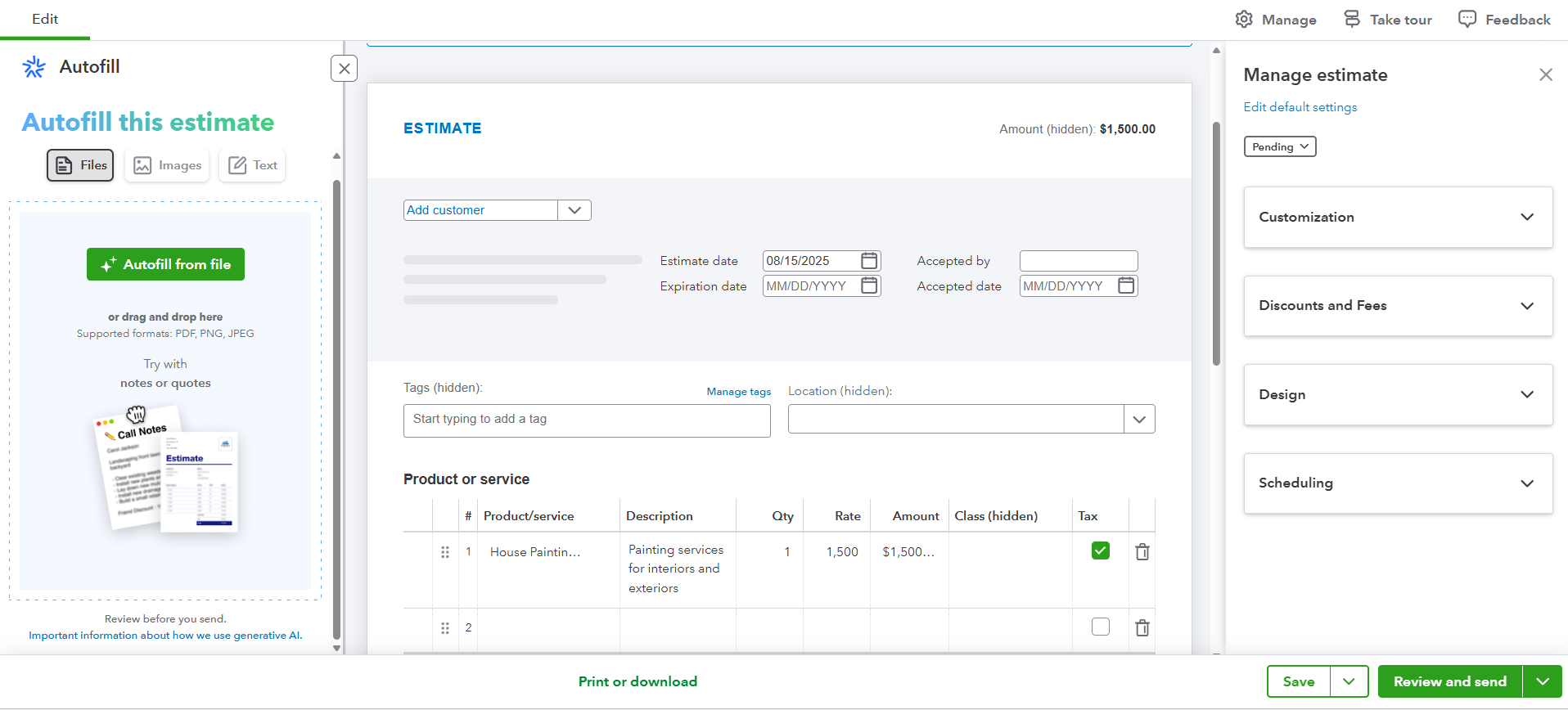
💡 New in 2025: The Autofill from file option lets you upload a previous quote (PDF, PNG, JPEG), and QBO will pull in the details for you saving typing time.
Step 2: Fill in the Main Estimate Details
-
Customer – Select an existing customer or add a new one.
-
Estimate Date – Defaults to today’s date.
-
Expiration Date – Optional, but setting this can encourage quicker approvals.
-
Accepted By / Accepted Date – Fill in when your client confirms the work.
-
Tags & Location – (Optional) Useful for organizing and tracking jobs.
Step 3: Add Products or Services
-
Click Add product or service and choose from your existing list or create a new one.
-
Enter Description, Quantity, Rate, and Tax if applicable.
-
If you need to clear the form, click Clear all lines.
💡 Tip: Use the “Design” section on the right to adjust the look of your estimate, add your logo, or change colors so it matches your branding.
Step 4: Customize, Add Discounts, or Schedule
The right-hand panel now has quick-access sections:
-
Customization – Adjust your template style.
-
Discounts and Fees – Apply special offers or additional charges.
-
Design – Change your form’s visual layout.
-
Scheduling – Set up recurring estimates if needed.

Step 5: Add Payment Info and Notes
-
-
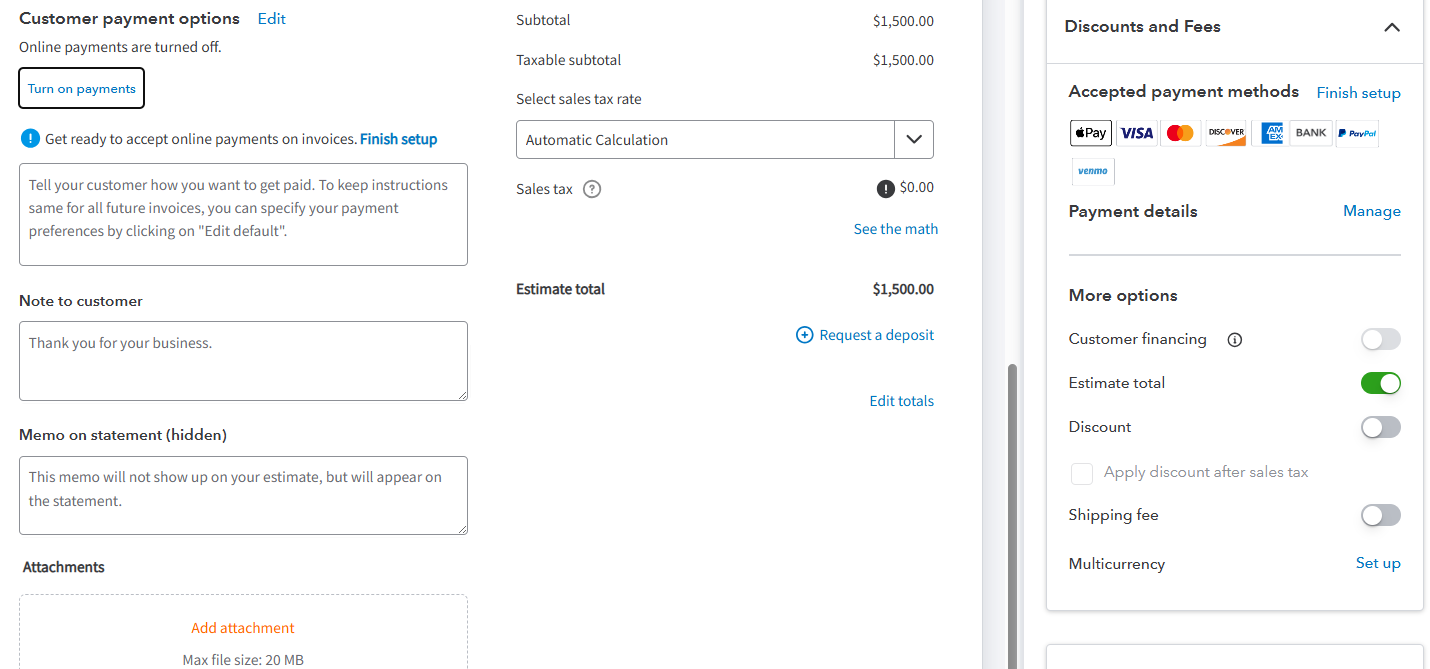
Customer Payment Options – Turn on online payments so customers can pay once the estimate becomes an invoice.
-
Note to Customer – Add a personal message or important instructions.
-
Memo on Statement – Internal note for your records (not shown to customers).
-
Attachments – Add images, documents, or reference files (max size 20MB).
-
Request a Deposit – Ask for a partial payment upfront.
-
Step 6: Send the Estimate
Click Review and send → preview → send.
Your client receives a clean, professional estimate in his inbox. Once he clicks “Accept,” you can convert it to an invoice in seconds.
Your estimate will now appear in Sales > All Sales, where you can track its status (Pending, Accepted, or Closed).


Final Thoughts
Estimates in QuickBooks Online help you present your business professionally, avoid pricing mistakes, and streamline your workflow. Whether you’re sending one quote a month or ten a day, automating the process saves time and helps you close jobs faster.
Try sending your next estimate through QBO it might just be the easiest part of your day.