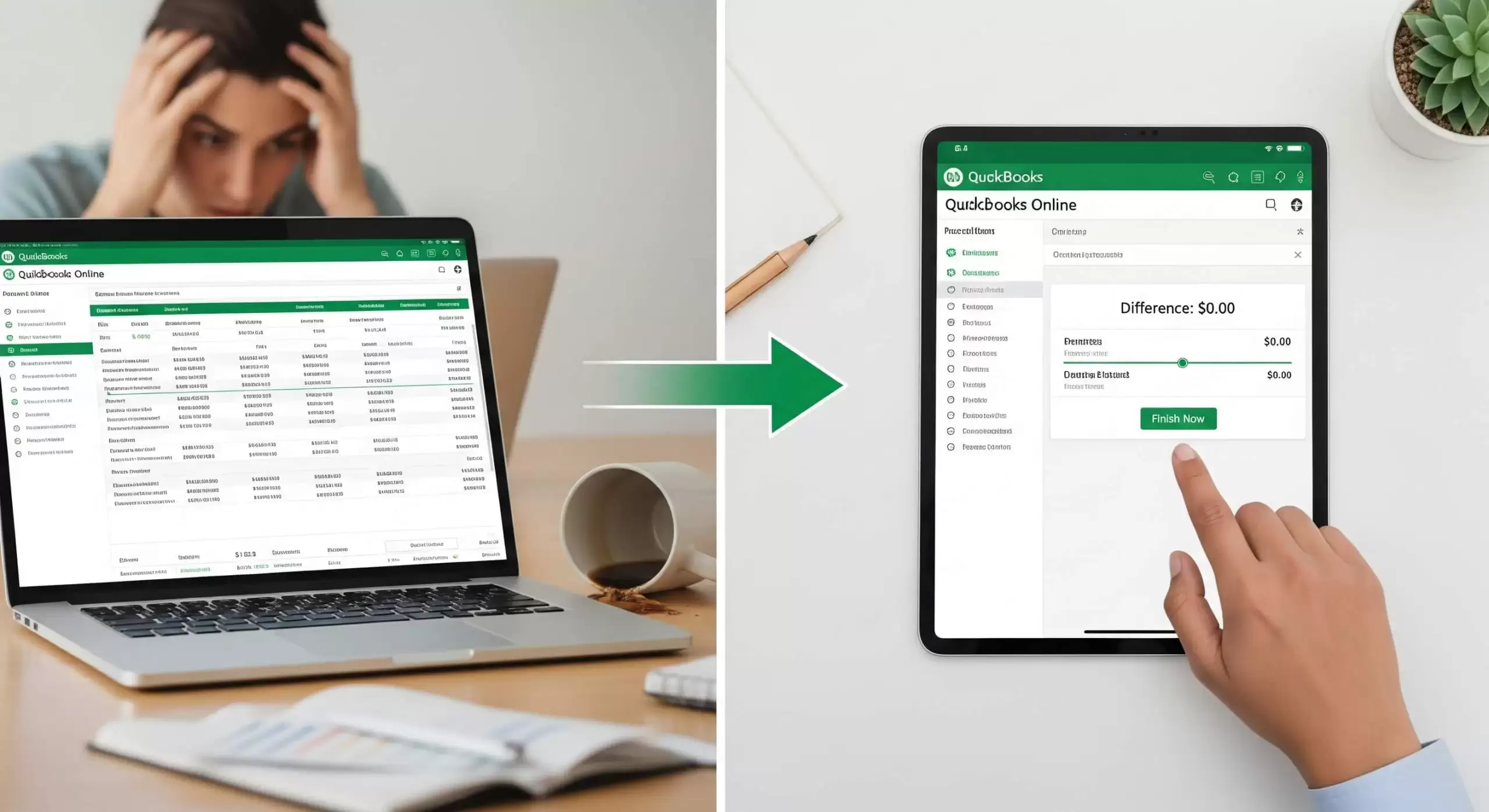
as as small business owner, you wear countless hats. You’re the visionary, the marketer, the salesperson, and, often, the bookkeeper. While QuickBooks Online (QBO) is a powerful tool designed to simplify your financial life, there’s one task that often strikes fear into the hearts of even the most diligent entrepreneurs: reconciling your accounts.
Perhaps you’ve opened your QBO account, seen the “Reconcile” option, and quickly clicked away. Maybe you’ve attempted it, only to be met with a frustrating difference that just won’t go to zero. Or perhaps you’ve simply put it off, hoping it will somehow resolve itself (spoiler alert: it won’t!).
We get it. The thought of meticulously comparing bank statements to your QBO entries can feel like trying to find a needle in a haystack – especially when you’re already swamped with daily operations. But here’s the truth: learning to reconcile QuickBooks Online is not just an administrative chore; it’s a foundational practice that unlocks financial clarity, reduces stress, and protects your business from costly errors.
At cloud5 accounting, we believe that every small business deserves peace of mind and complete confidence in their financial data. This comprehensive guide will demystify the QBO reconciliation process, providing you with a clear, actionable, step-by-step roadmap to achieve accurate books. We’ll show you exactly how to make a QuickBooks Online reconciliation, troubleshoot common issues, and understand why this vital task is the cornerstone of your financial health.
Why Reconcile? The Crucial “Why” Behind the Process
Before we dive into the “how,” let’s briefly touch upon the indispensable reasons why reconciling QuickBooks Online regularly is non-negotiable for any savvy business owner:
1. Ensuring Financial Accuracy: This is the primary reason. Reconciliation is like a detailed checksum. It confirms that the cash in your bank account matches the cash reported in your QBO. This process catches errors like duplicate entries, missing transactions, or incorrect amounts.
2. Detecting Fraud and Errors: Regularly comparing your bank statement to your QBO records helps you spot unauthorized transactions, bank errors, or even employee theft early on, protecting your valuable assets.
3. Preventing Overdrafts and Managing Cash Flow: Knowing your precise cash balance helps you make informed spending decisions and avoid unexpected overdraft fees. It provides a real-time, accurate picture of your cash flow.
4. Simplified Tax Preparation: When your books are reconciled, your income and expense categories are accurate and reliable. This makes tax season infinitely smoother, saving you time and potentially money, and reducing the risk of IRS scrutiny.
5. Informed Business Decisions: Accurate financial statements (which depend on reconciled accounts) are essential for making smart strategic decisions. Whether you’re planning an expansion, seeking a loan, or evaluating profitability, you need reliable data.
6. Peace of Mind: Perhaps the most undervalued benefit. When you know your financial records are clean, accurate, and up-to-date, a significant source of stress is removed. You gain confidence and clarity, allowing you to focus on what you do best: growing your business.
Before You Begin: Your Pre-Reconciliation Checklist
Preparation is key to a smooth reconciliation. Before you click that “Reconcile” button in QBO, ensure you have these items in order:
- Gather Your Bank/Credit Card Statement: Have the actual statement (digital PDF or paper) for the account and period you intend to reconcile. You’ll need the ending balance and statement ending date.
- Categorize All Bank Feed Transactions: Go to your Banking (or Transactions > Bank Transactions) section in QBO. Ensure that all downloaded transactions for the current period have been reviewed, categorized, matched, and added to your books. Uncategorized transactions will cause discrepancies.
- Match Transactions to Existing Entries: If you’ve already entered an invoice payment or a bill payment, make sure the downloaded bank transaction is matched to that existing entry, not added as a new one. This avoids duplicates.

- Clear Undeposited Funds: If you process payments that go into an “Undeposited Funds” account, ensure these are correctly recorded as bank deposits in QBO that match your actual bank deposits.
- Review for Duplicates: Quickly scan your recent QBO entries for any obvious duplicate transactions that might have accidentally slipped in.
Step-by-Step Guide: How to Reconcile QuickBooks Online Like a Pro
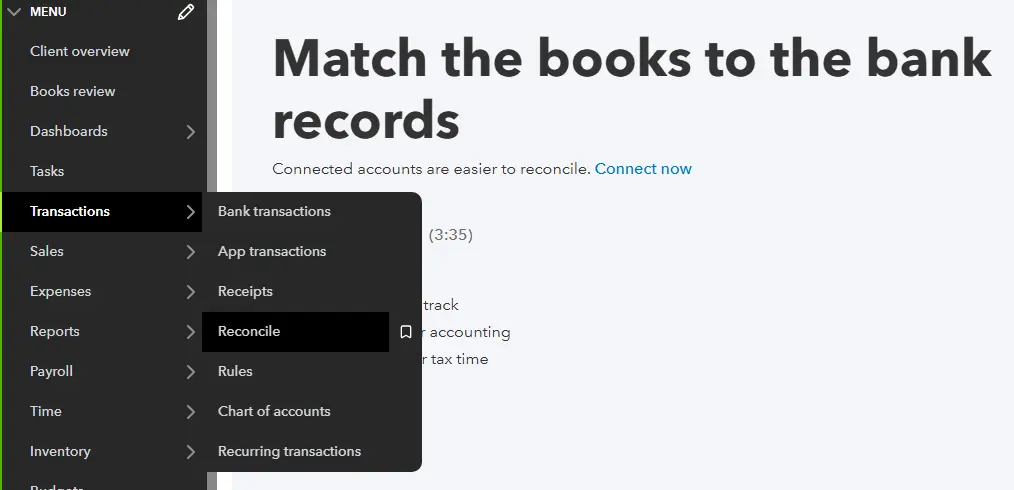
Step 1: Access the Reconciliation Tool
- Log in to your QuickBooks Online account.
- On the left-hand navigation bar, click on Transactions.
- Then, select Reconcile. (Alternatively, you can click the Gear Icon in the top right corner and choose Reconcile under “Tools”).
Step 2: Select the Account and Enter Statement Details
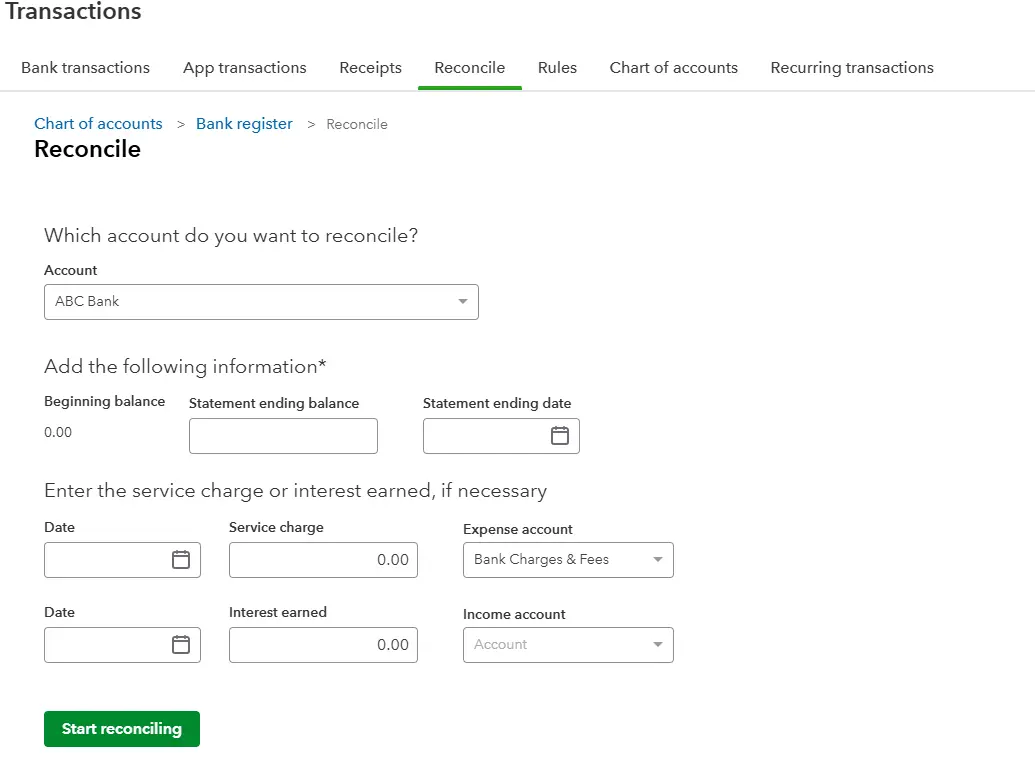
This is where you tell QBO what you’re trying to match.
- Choose the Account: From the dropdown menu, select the bank account or credit card account you want to reconcile. (e.g., “Checking,” “Savings,” “Business Credit Card”).
- Enter the Ending Balance: Look at your physical bank or credit card statement. Find the “Ending Balance” as of the statement date and type this exact number into the “Ending Balance” field in QBO.
- Enter the Ending Date: Also from your statement, find the “Statement Ending Date” and enter it into the corresponding field in QBO.
- Optional: Enter a Beginning Balance (if applicable): If this is your very first reconciliation, QBO might ask for a beginning balance. For subsequent reconciliations, QBO automatically pulls the ending balance from your previous successful reconciliation as the new beginning balance.
- Click “Start Reconciling.”
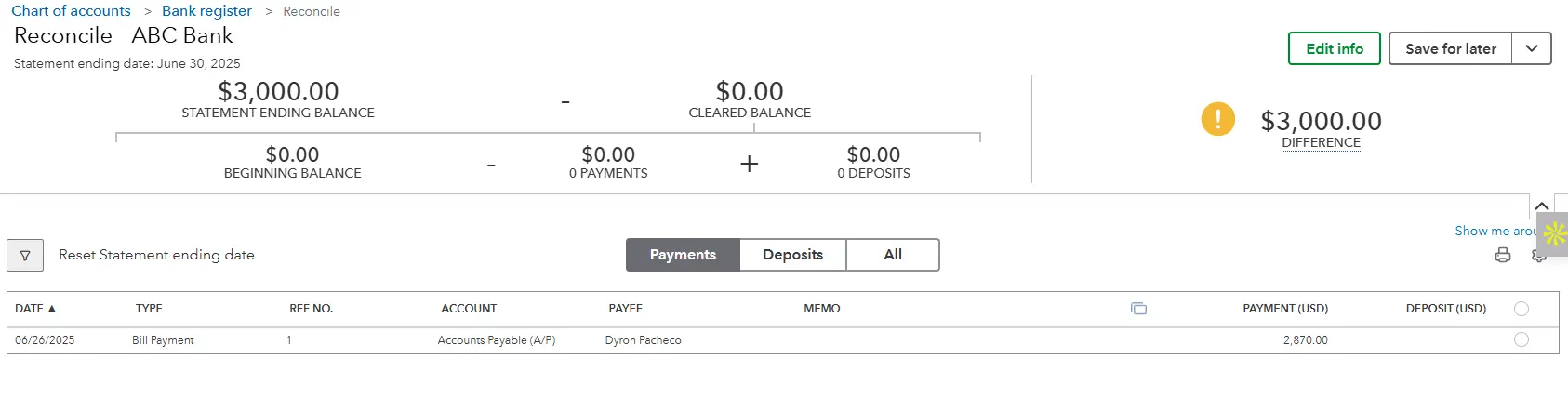
Step 3: Understand the Reconciliation Screen
You’re now on the main reconciliation screen. Don’t be overwhelmed; it’s designed to help you.
- The “Difference” Field: At the very top, you’ll see a large number labeled “Difference.” Your ultimate goal is to make this number $0.00.
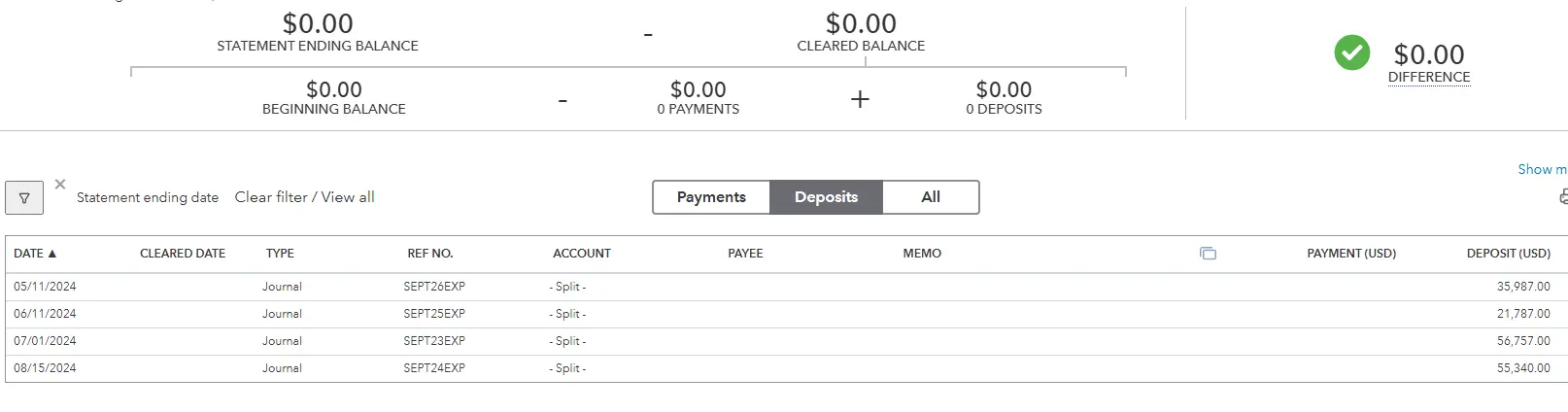
- Deposits: This column lists all money coming into your account according to QBO (e.g., customer payments, refunds, interest earned).
- Payments: This column lists all money going out of your account according to QBO (e.g., expenses, bill payments, withdrawals).
- Search and Filter Tools: On the right, you’ll see options to search for specific amounts or filter by transaction type or date. These are invaluable for troubleshooting.
Step 4: Match Transactions from Your Statement to QBO
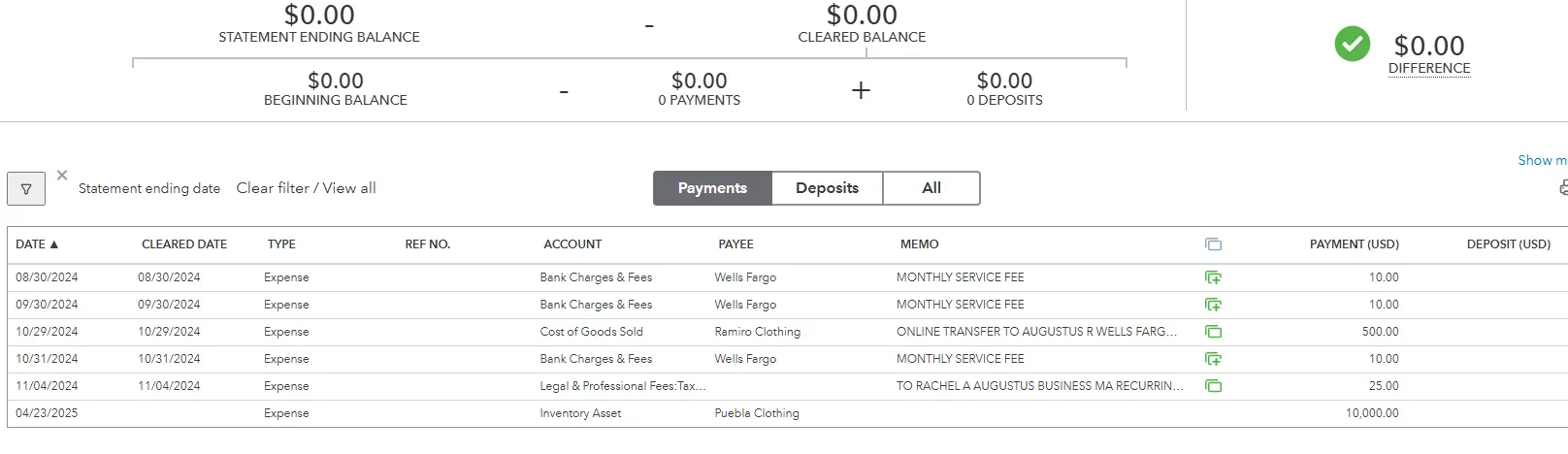
This is the core of the reconciliation process. Take your bank statement and go through it line by line.
For Each Transaction on Your Bank Statement:
- Locate the corresponding transaction in QuickBooks Online. Look at the date, payee, and most importantly, the amount.
- Click the checkbox next to the transaction in QBO. As you check items, watch the “Difference” amount at the top change. Your goal is for it to move closer to zero.
- Focus on Deposits First: Many find it easier to reconcile all deposits/credits first, then move on to payments/debits.
- Be Meticulous: Double-check every amount. A single transposed digit (e.g., $51 instead of $15) can throw off your entire reconciliation.
Step 5: Handling Discrepancies During Reconciliation
It’s rare for everything to match perfectly on the first pass. Here’s how to deal with common issues:
| Scenario | Action |
|---|---|
| A transaction appears on your bank statement but not in QBO. | You’ll need to add it! If it’s something simple like a bank service fee or interest earned, you can often add it directly from the reconciliation screen (or go back to the bank feed to add/categorize it). For more complex entries, you might need to leave reconciliation temporarily to record the expense, income, or transfer properly, then return to check it off. |
| A transaction is in QBO but not on your statement for the current period. | This often means it’s an outstanding transaction. For example, a check you wrote hasn’t been cashed yet, or a deposit you made hasn’t cleared the bank. Do not check these off during the current reconciliation. They will remain unchecked and show up in the next period’s reconciliation. |
| A transaction amount in QBO doesn’t match your statement. | You must correct the transaction in QBO. Click on the transaction line in the reconciliation screen, and QBO will usually open it in a new window for editing. Correct the amount, save, and then return to the reconciliation screen to check it off. |
| The same transaction appears twice in QBO. (Double entry) | Delete the duplicate entry. Be careful to delete the correct one. |
| Your bank statement shows an error (e.g., incorrect charge, double charge). | Do not try to force QBO to match the error. Continue reconciling the rest of your statement. Once you’re done, you’ll have a non-zero difference equal to the bank error. Contact your bank immediately to resolve the issue. Once they correct it, you may need to make an adjusting entry in QBO for this period or wait for the next statement. |
| You’ve checked everything, and you’re left with a very small difference, often just a few cents. | While ideal is $0.00, sometimes these small differences arise from rounding or minor bank interest/fees not fully captured. If it’s truly negligible and you’ve exhausted all other options, QBO may allow you to create an adjustment. However, use this feature sparingly. It’s always best to find the exact discrepancy. If you click “Finish Now” with a difference, QBO will automatically create an “Opening Balance Equity” adjustment to force it to reconcile. This isn’t ideal for accuracy, so only use it as a last resort for truly tiny, unfindable differences. |



Step 6: Finish the Reconciliation
- Once you have checked off all matching transactions and your “Difference” field at the top shows $0.00, you’re ready!
- Click the “Finish Now” button.
Congratulations! You’ve successfully reconciled your QuickBooks Online account. QBO will typically prompt you to view or print your reconciliation report, which is an excellent record to keep.
Common Challenges and How to Avoid Them
Even with a step-by-step guide, certain habits can trip you up:
Not Reconciling Regularly: The biggest mistake! Reconciling monthly keeps the volume of transactions manageable and helps catch errors quickly. Waiting months (or a year!) turns reconciliation into a nightmare.
Ignoring Small Differences: “It’s only a dollar” can quickly accumulate into a significant, untraceable discrepancy. Every penny counts.
Not Using the Bank Feed Effectively: QBO’s bank feed is designed to simplify reconciliation. Ensure you’re regularly reviewing, matching, and categorizing transactions from your bank feed before you start the reconciliation process.
Entering Duplicate Transactions: This is common when you manually enter transactions and use the bank feed, then forget to match. Always prioritize matching bank feed transactions to existing entries.
Incorrect Starting Balances: If your very first reconciliation was incorrect, or if someone manually un-reconciled a past transaction, it can throw off all future reconciliations. This often requires a deeper “clean-up.”
Final Thoughts
Reconciling QuickBooks Online is more than just balancing numbers; it’s about establishing trust in your financial data, protecting your assets, and gaining the confidence to make smart business moves. While it may seem daunting at first, breaking it down into manageable steps makes it achievable.
Remember, consistent, accurate bookkeeping is the backbone of a thriving small business. If the thought of tackling reconciliation, cleanup, or even ongoing bookkeeping still feels like a mountain you can’t climb, know that Cloud5 Accounting is ready to be your trusted partner. Let us take over your QuickBooks Online tasks so you can reclaim your time and focus on what truly matters: running and growing your business with unparalleled peace of mind.