
As a small business owner, you wear many hats, from client acquisition to service delivery, and yes, managing your finances. There’s a lot to balance, and even the most meticulous among us will, at some point, make a little blip in the financial radar. Perhaps you issued a check with an incorrect amount, or a payment was stopped, or a check was never cashed. In these moments, the question often arises: “How do I fix this in QuickBooks Online?”
Specifically, when it comes to checks that need to be undone, the correct action isn’t always obvious. Should you delete it? Or is there a better way?
This guide will walk you through the precise steps to void a check in QBO, explain why voiding is almost always superior to deleting, and provide best practices to maintain impeccable financial records. Let’s transform those moments of “uh-oh” into “all clear!”
When to Void a Check in QuickBooks Online?
Before we dive into the “how,” it’s crucial to understand *when* voiding is the appropriate action and, perhaps more importantly, why it’s usually better than simply deleting a check entry.
Voiding a check is the best course of action in several common scenarios:
- Check Was Issued But Never Cashed: This is perhaps the most frequent reason. You wrote a check, perhaps mailed it, but for whatever reason (lost in mail, payee decided not to deposit it, or the service was cancelled), it was never presented for payment. It’s still recorded in your books, making your bank reconciliation a headache.
- Incorrect Amount or Payee: You mistakenly wrote a check for the wrong amount or to the wrong person. If the physical check hasn’t been cashed, you’ll want to void the original entry before reissuing the correct one.
- Duplicate Entry: You accidentally entered the same check twice in QuickBooks Online. Voiding one of the duplicates will correct your records without removing the audit trail.
- Stopped Payment: You issued a check, but then instructed your bank to stop payment on it. Voiding the check in QBO reflects this action accurately.
Voiding vs. Deleting: A Crucial Distinction
This is paramount for maintaining accurate financial records and a clear audit trail.
Voiding a Check: When you void a check in QuickBooks Online, the transaction *remains* in your books, but its monetary value becomes zero. It still appears in your bank register and other reports, but with “Void” next to it and a $0.00 amount.
Benfit: This preserves the historical record. You can see that a check (with its original check number, payee, and date) was issued but then nullified. This is invaluable for an audit trail, especially if the original physical check number needs to be accounted for. It prevents gaps in your check sequence and makes bank reconciliation much smoother.
Impact on Reconciliation: A voided check will appear on your bank reconciliation report with a $0.00 amount, making it easy to see it was handled, but it won’t impact your ending balance.
Deleting a Check: When you delete a check, it is completely removed from your QuickBooks Online records. It vanishes as if it never existed.
Risk: Deleting can create significant problems. It breaks your audit trail, leaves gaps in your check numbering sequence, and can cause reconciliation nightmares because a transaction that did occur (even if it was later nullified) is no longer visible in your QBO history. If that check ever surfaces or if you need to explain your bank statements, you’ll have no internal record to refer to.
Impact on Reconciliation: Deleting a check that was previously written (and perhaps even cleared your bank) can throw your reconciliation off balance and make it extremely difficult to track down discrepancies.
Our Expert Recommendation: Always choose to void a check in QuickBooks Online unless you are absolutely certain the entry was a draft or an error that never impacted your bank account or was never actually “issued” (e.g., a data entry error before the check was physically created). For anything that involves a physical check number that hit your bank account initially, voiding is the safer, smarter choice.
Step-by-Step: How to Void a Check in QuickBooks Online
QuickBooks Online provides a user-friendly interface, and voiding a check is a straightforward process once you know where to look. There are primarily two common methods: voiding directly from the bank register or from the Expenses screen.
Method 1: Voiding from the Bank Register (Recommended for Clarity)
This method is often preferred because it gives you a direct view of your bank transactions, similar to a physical checkbook register.
1. Navigate to the Chart of Accounts:
From your QuickBooks Online Dashboard, go to Settings (the gear icon) in the top right corner.
Under “Your Company,” click on Chart of Accounts.

- Locate Your Checking Account:
On the Chart of Accounts page, find the bank account from which the check was written (e.g., “Checking,” “Operating Account”).
On the right side of that account row, click on View Register.

- Find the Check to Void:
In the register view, scroll through the transactions or use the search bar/filters (e.g., by date, check number, or payee name) to locate the specific check you wish to void.

- Open the Check Transaction:
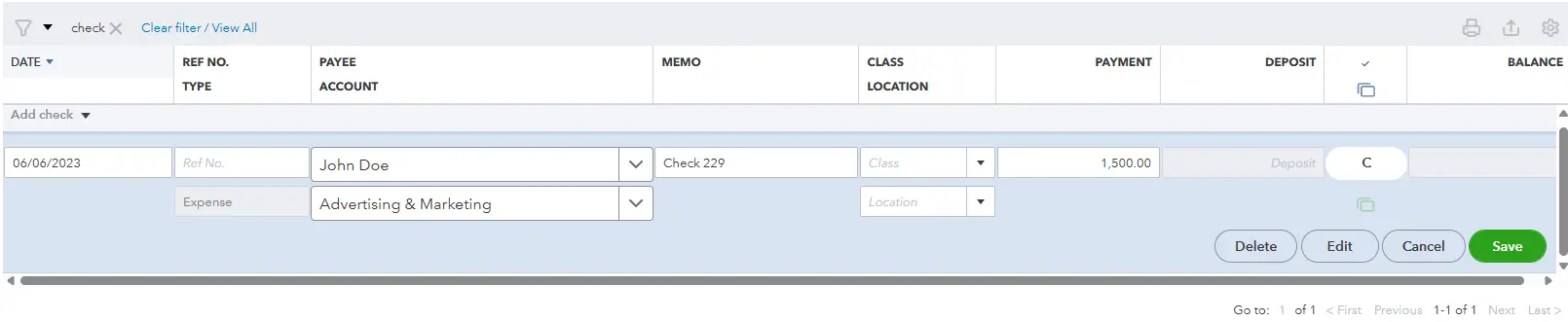
Once you find the check, click on the transaction line itself, then click on Edit. This will expand the details of the check.
- Access the Void Option:
At the bottom of the expanded transaction details, you will see a More button. Click on it.
From the dropdown menu that appears, select Void.

- Confirm the Void:
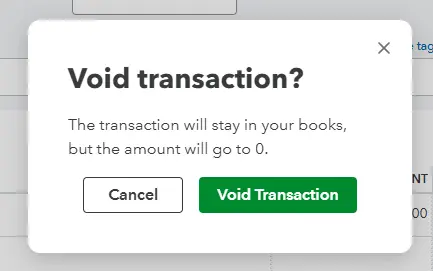
QuickBooks Online will prompt you with a confirmation message, typically asking, “Are you sure you want to void this transaction?”
Carefully review the details one last time. If you’re confident, click Yes.
- Verify the Change:
The check entry in your register will now show “VOID” next to the original transaction, and the amount will be changed to $0.00. The original check number and date will remain for your records.
Method 2: Voiding from the Expenses Screen
This method is useful if you prefer to manage all your expense-related transactions from a centralized location.
1. Go to Expenses:
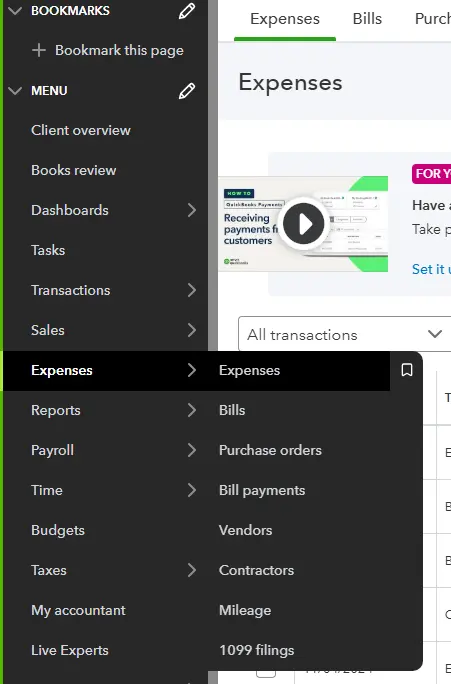
From the left-hand navigation bar, click on Expenses, then select Expenses again from the submenu.
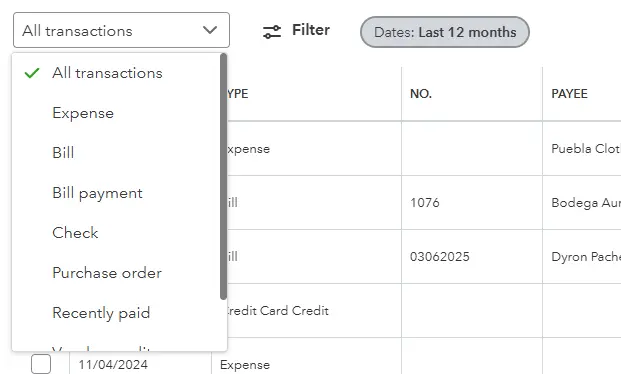
- Find the Check:
On the “Expenses” tab, you’ll see a list of all your recorded expenses. Use the filters (e.g., “Type” and select “Check,” “Payee,” “Date”) or the search bar to narrow down the list and find the specific check you need to void.
3. Open the Check Transaction:
Click on the check transaction line to open its details.
- Access the Void Option:
Similar to the bank register method, at the bottom of the check details window, click the More button.
From the dropdown menu, select Void.

- Confirm the Void:
You will receive the same confirmation prompt. Click Yes to proceed.
- Verify the Change:
The check will now show as “Void” in your expenses list, and its amount will be zero. If you navigate back to the bank register (Method 1), you’ll see the corresponding change there as well.

Post-Voiding Best Practices and Considerations
Voiding a check is just one step. To ensure your books remain pristine and your financial clarity is maintained, consider these important follow-up actions:
- Reconcile Your Bank Account Promptly:
Voiding a check makes it a $0.00 transaction. When you reconcile your bank account in QBO, this voided check will appear. It’s crucial that it shows as “cleared” (since it won’t impact your bank balance for uncleared items) to ensure your QBO balance matches your bank statement. If the original check had cleared, and you’re voiding it to correct a previous error, ensure your reconciliation correctly reflects the original clearing and the voiding entry.
Voided checks help keep your reconciliation clean by ensuring all physical check numbers are accounted for, even if they had no monetary impact.
- Communicate with the Payee (If Applicable):
If you voided a check that was intended for a vendor or service provider, ensure you notify them immediately. Let them know the original check has been voided and whether you plan to issue a new one, pay via another method, or if the payment is no longer due. This maintains good business relationships.
- Address the Underlying Issue:
Why was the check voided?
Incorrect Amount/Payee: Create a new check with the correct details. Assign it a new check number.
Never Cashed: If the payment is still due, issue a new check. If the service was cancelled, no further action might be needed beyond the void.
Duplicate Entry: No further action needed if you voided the duplicate.
- Maintain the Audit Trail:
The beauty of voiding is that it preserves the audit trail. You can always go back and see the original transaction and its subsequent void status. This is invaluable for internal review, external audits, or simply remembering what happened months down the line.
- Note the Void Date:
When you void a check, QBO typically uses the current date as the void date. This is important because it affects which accounting period the voiding action impacts. If you’re voiding a check from a previous accounting period (e.g., last fiscal year), consult with your bookkeeper or accountant to understand the full implications and ensure no prior period reports are inadvertently affected without proper adjustments.
Common Mistakes to Avoid When Handling Checks in QBO
To reinforce best practices, here are a few common pitfalls to steer clear of:
Deleting Instead of Voiding: We’ve hammered this point home, but it’s worth reiterating. Unless a check entry was truly a draft that never left your QBO system or was never physically created, always void, never delete.
Not Communicating with Payees: Voiding a check without informing the recipient can lead to confusion, delays, and potential relationship issues.
Ignoring Reconciliation Implications: A voided check impacts your bank reconciliation. Ensure you address it during the reconciliation process to keep your books balanced.
Not Addressing the Root Cause: Voiding fixes the symptom, but if you don’t issue a new check or resolve why the original was incorrect, you haven’t truly completed the task.
Batch Voiding Without Review: While QBO allows for quick actions, avoid voiding multiple checks in a batch without carefully reviewing each one. Mistakes can happen quickly.
When to Seek Professional Help
While voiding a check is a straightforward process, complex scenarios can arise. If you find yourself in any of the following situations, it might be time to reach out to a professional bookkeeper or accountant:
– You’ve accidentally deleted checks and your bank reconciliation is severely off.
– You need to void checks from a previous fiscal year, and you’re unsure about the tax or reporting implications.
-You have numerous outstanding or uncleared checks that need to be addressed, and it’s becoming overwhelming.
-You’re struggling with consistent bank reconciliation issues, even after voiding transactions.
– You simply want the peace of mind knowing your books are being handled by experts.
At Cloud5 Accounting, we specialize in providing tailored bookkeeping solutions for small service-based businesses using QuickBooks Online. We can help you set up efficient workflows, ensure accurate reconciliation, and provide ongoing support to keep your financial house in order. We understand the nuances of QBO and can translate complex accounting principles into simple, actionable steps for your business.