

What Exactly is a Chart of Accounts (COA)?
Your Chart of Accounts is the central organizational system for every financial transaction within your business, providing a complete inventory of all accounts used to document your company’s financial operations.
Every dollar your business earns, spends, owns, or owes is tracked within one of these accounts. These accounts are systematically organized into five main categories:
- Assets: What your business owns (cash, accounts receivable, equipment, property).
- Liabilities: What your business owes (accounts payable, loans, credit card debt).
- Equity: The owner’s stake in the business (owner’s contributions, retained earnings).
- Income: Money your business earns from its operations.
- Expenses: Money your business spends to operate.
Without a clear, well-structured COA, your financial data would be a jumbled mess – impossible to interpret, difficult to use for decision-making, and a nightmare at tax time. It truly is the backbone of your entire accounting system, providing the structure necessary for accurate financial reporting and insightful analysis.
Here Is How To Set Up Your Chart of Accounts in QuickBooks Online
Step 1: Accessing Your Chart of Accounts in QBO
- Log in to your QuickBooks Online account.
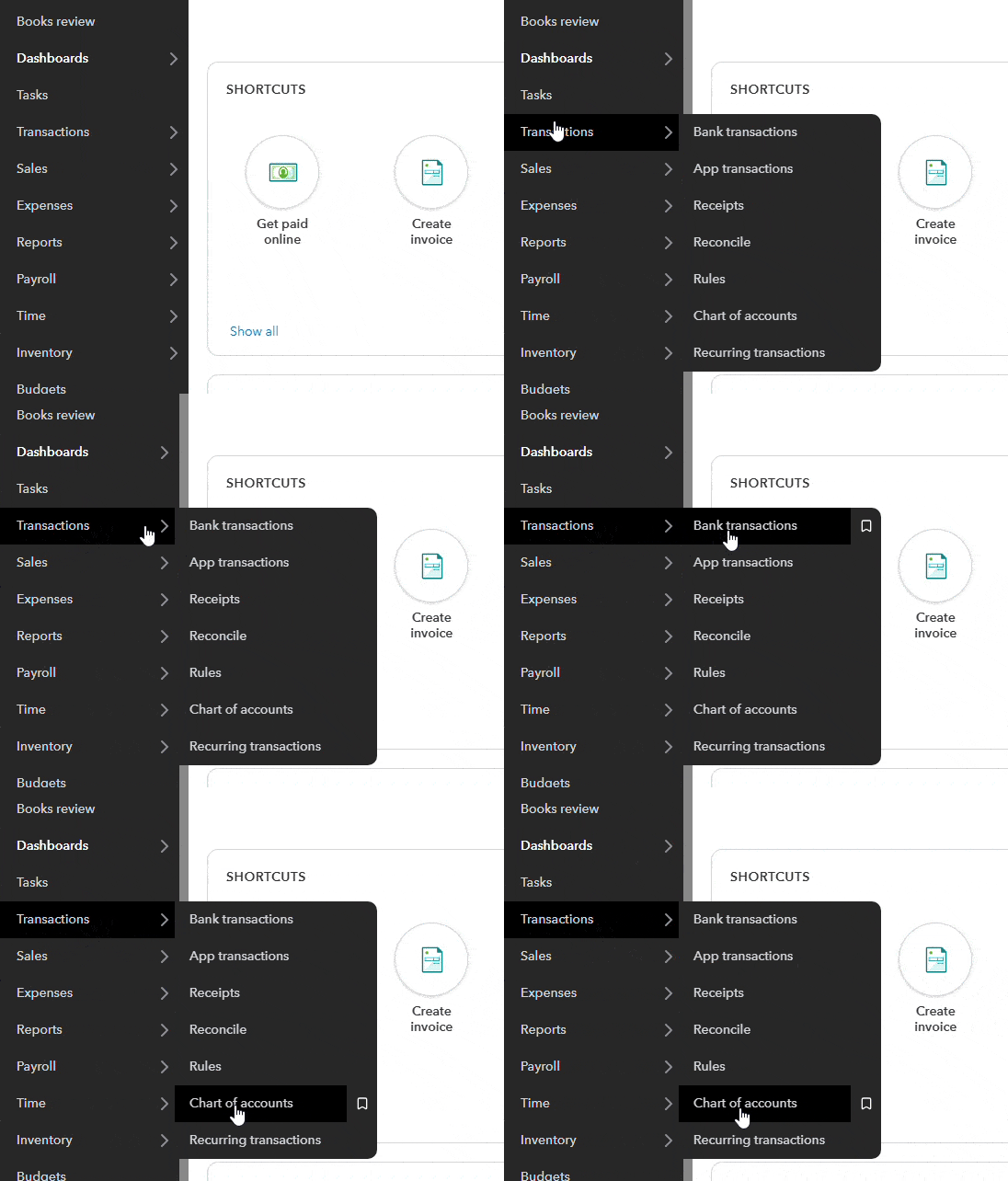
- On the left-hand navigation bar, click “Transactions.”
- Then, click “Chart of Accounts.” (Alternatively, you can click the `Gear Icon` in the top right corner and select `Chart of Accounts` under “Your Company”).
Step 2: Review the Default Chart of Accounts
QuickBooks Online automatically creates a basic COA when you set up your company. This includes common accounts like bank accounts, income, expenses, and assets.
- Scroll through the list to understand what’s already there.
- Decide what you want to keep, edit, or delete (only inactive accounts can be deleted).
Step 3: Plan Your Custom Accounts
Before adding anything, think about:
- What income streams do you have? (e.g., Rent income, Late fees)
- What are your main expense categories? (e.g., Repairs, Management fees)
- Do you need to track liabilities like security deposits or loans?
Step 4: Add a New Account
-
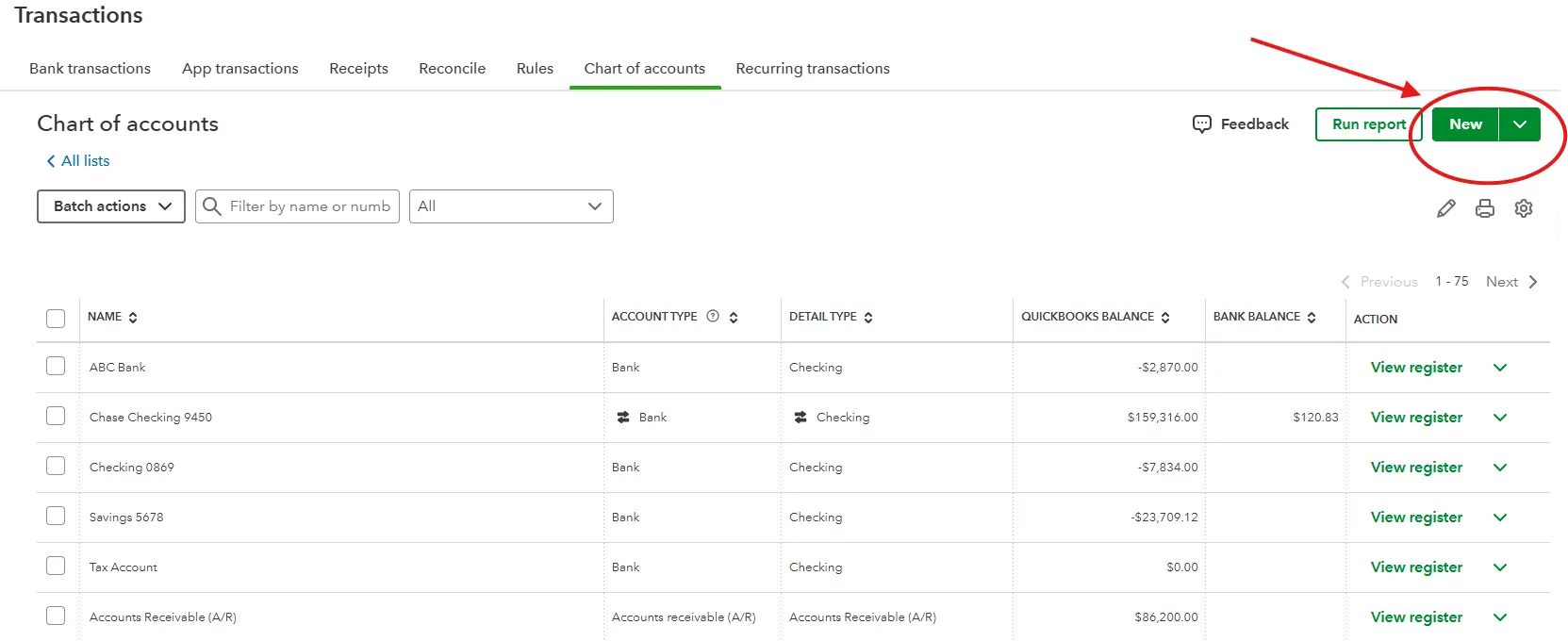
In the Chart of Accounts screen, click the New button in the top right.
-
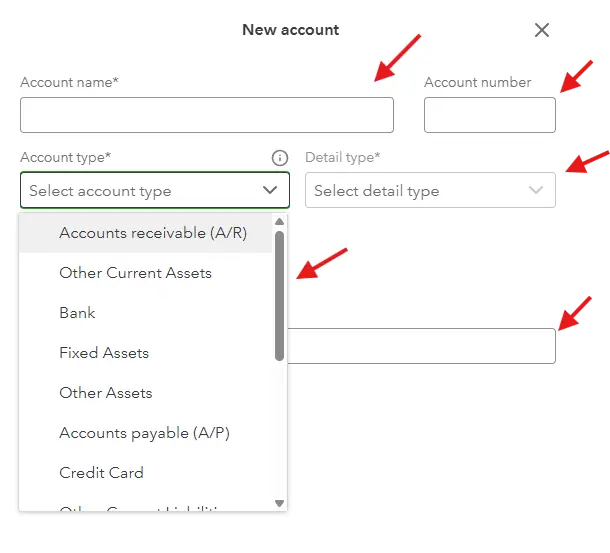
In the slide-in form, fill in the following:
-
Account Type – This determines where it shows on reports (e.g., Income, Expense, Bank, Asset).
-
Detail Type – A more specific description that helps QuickBooks categorize it.
-
Account Name – Give your account a clear, simple name (e.g., “Rental Income – Property A”).
-
Description – Optional, but useful for clarity.
-
Starting Balance – Only used for balance sheet accounts (e.g., Bank, Credit Card).
-
Account Number – Add the account number (optional).
-
-
Click Save and Close (or Save and New to create another).


Step 5: Organize with Subaccounts (Optional but Powerful)
To keep your books clean and categorized:
When creating a new account, check the “Is sub-account” box.
Select the parent account (e.g., Utilities > Electricity or Property A > Repairs).
This allows for grouped reporting and better insights.
Example:
Repairs and Maintenance
↳ Subaccount: Repairs – Property A
↳ Subaccount: Repairs – Property B
Why a Well-Structured COA is Crucial for Your Small Business
Setting up your Chart of Accounts correctly from the outset, or cleaning it up if it’s already messy, is one of the most impactful things you can do for your business. Here’s why it’s so critical:
Unparalleled Financial Clarity: A good COA allows you to quickly see exactly where your money is coming from and where it’s going. No more guessing games about profitability or cash flow.
Informed Decision-Making: With clear data categorized appropriately, you can make smarter decisions about pricing, budgeting, resource allocation, and expansion. Which services are most profitable? Where can you cut costs? Your COA holds the answers.
Simplified Tax Preparation: Accurate categorization of income and expenses is paramount for tax compliance and maximizing deductions. A well-organized COA means less stress and potentially more savings at tax time.
Easier Reporting & Analysis: Your Profit & Loss (Income) Statement and Balance Sheet are generated directly from your COA. When your COA is clean, these reports are accurate and provide meaningful insights into your business’s performance and financial health.
Business Growth & Scalability: As your business grows, your financial needs become more complex. A robust COA can adapt and scale with you, ensuring you maintain control and insight as you expand.
Time Savings & Reduced Stress: Believe it or not, investing time upfront in your COA setup saves you countless hours down the line. Less time spent hunting for transactions or fixing errors means more time for what you do best: running your business.
Conclusion
Your Chart of Accounts is more than just a list of numbers; it’s the organized language of your business’s financial story. By taking the time to understand how to set up Chart of Accounts in QuickBooks Online correctly, you’re investing directly in your business’s financial health, strategic decision-making, and long-term success.
While this guide provides you with a robust framework and actionable steps, remember that expert help is always available. Cloud5 Accounting is here to ensure your QuickBooks Online bookkeeping is accurate, efficient, and provides you with the crystal-clear financial insights you need to thrive.
Don’t let a disorganized COA hold your business back. Take control today, or let us help you build the solid financial foundation you deserve.