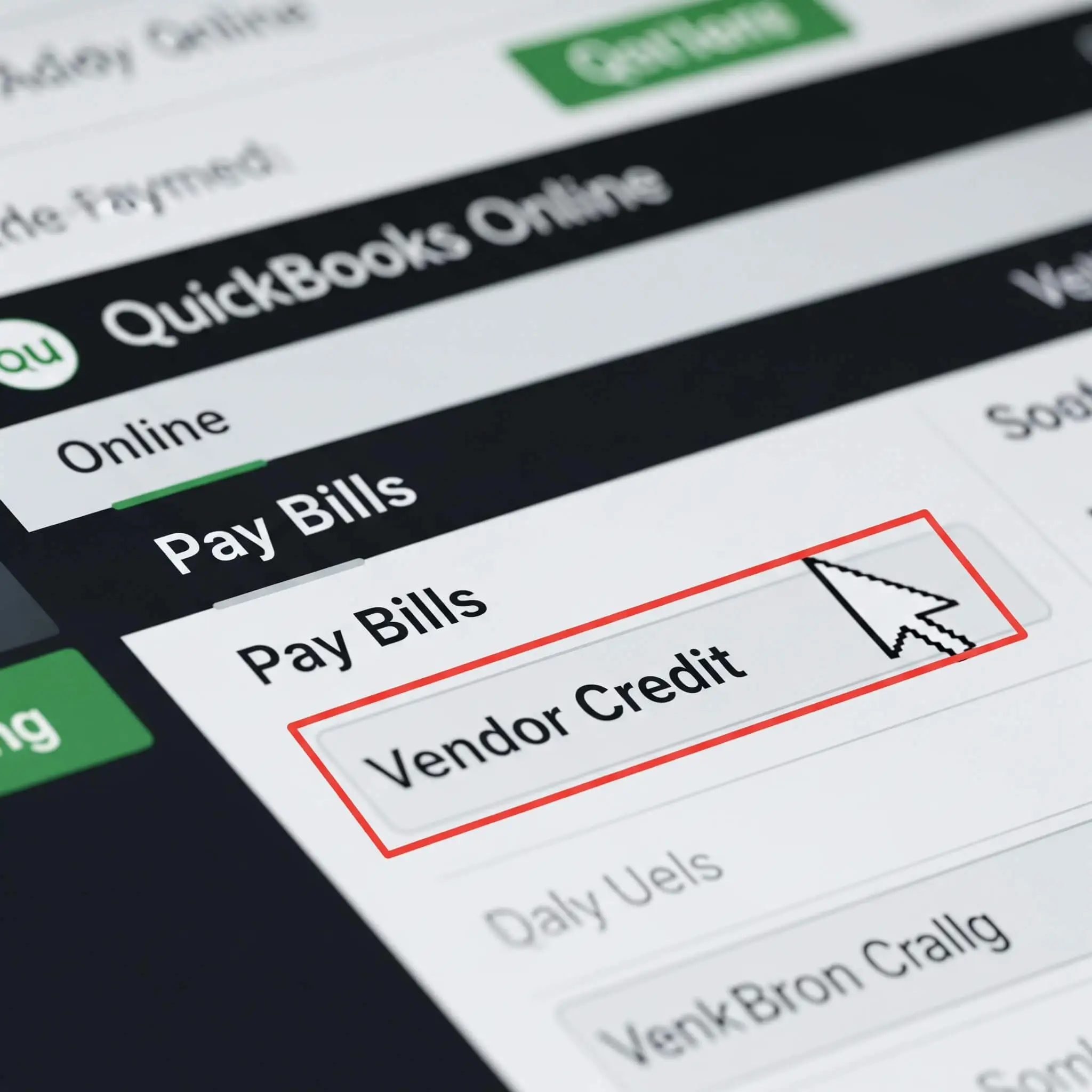
Managing invoices, expenses, and overall financial accuracy can be complex. Vendor credits are a critical detail in this process that are often overlooked or misunderstood.
A vendor credit arises when a vendor owes you money, perhaps due to returning a defective product, receiving an overpayment refund, or earning a discount after the initial bill. If not properly managed within QuickBooks Online, these credits can quietly diminish your profits, result in overpayments, and cause financial confusion.
Are you tired of feeling like you’re leaving money on the table or wrestling with your QuickBooks Online account trying to figure out where that credit went? You’re not alone. Many small business owners find themselves confused by this seemingly simple task.
At cloud5 accounting, we believe in empowering small businesses with the knowledge to thrive. This guide will walk you through, step-by-step, how to apply vendor credits in QuickBooks Online, ensuring you reclaim every dollar you’re owed, simplify your bookkeeping, and move closer to that coveted financial clarity and peace of mind.
What Exactly is a Vendor Credit, and Why Does It Matter?
Before we dive into the “how-to,” let’s clarify what a vendor credit is and why it’s so vital for your business’s financial health.
A vendor credit in QuickBooks Online represents money that a vendor (a supplier or service provider you pay) owes back to your business. It’s essentially a positive balance with that vendor that reduces what you’ll owe them on future bills.
Common scenarios where you’d receive a vendor credit include:
Returned Goods: You sent back items that were damaged, incorrect, or no longer needed.
Overpayment: You accidentally paid a vendor more than what was due on an invoice.
Discounts/Rebates: The vendor offered a discount or rebate that was applied after the original bill was issued (e.g., a volume discount, a loyalty bonus).
Service Adjustments: The vendor issued a credit for unsatisfactory service or a partial refund.
Why does accurately tracking and applying vendor credits matter?
- Prevents Overpayment: Without applying a credit, you risk paying the full amount on a future bill, even though the vendor owes you money. This directly impacts your cash flow.
- Accurate Financial Reporting: Properly recorded credits ensure your accounts payable balance is accurate, reflecting the true amount you owe your vendors.
- Maximizes Your Savings: Every credit applied is money saved or recovered, directly impacting your bottom line.
- Reduces Stress & Confusion: Knowing exactly where you stand with each vendor eliminates guesswork and the frustration of tracking down discrepancies.
Ignoring vendor credits is like leaving cash in forgotten pockets – it’s your money, and it belongs in your business!
Let’s transform confusion into control.
Entering a Vendor Credit in QuickBooks Online
The first crucial step is to correctly record the vendor credit in QuickBooks Online. Think of this as officially telling QBO, “Hey, this vendor owes us money!”
The first crucial step is to correctly record the vendor credit in QuickBooks Online
Here’s how to do it:
- Log in to Your QuickBooks Online Account: Access your dashboard.
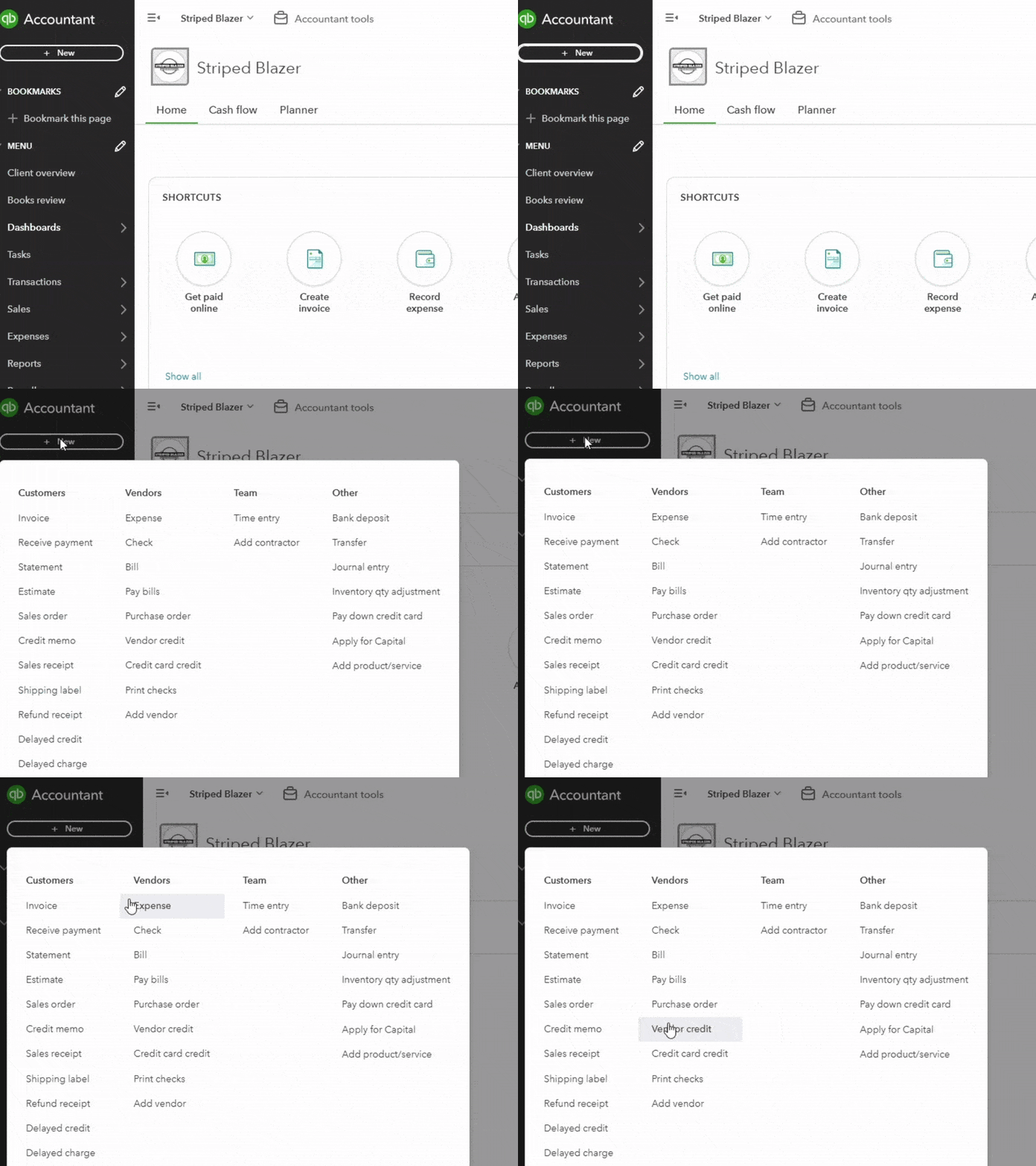
- Navigate to the “+ New” Button: On the top left of your QBO dashboard, click the large “+ New” button (or the plus sign icon). This is your gateway to creating new transactions.
- Under “Vendors,” Select “Vendor Credit”: In the menu that appears, look for the “Vendors” column and click on “Vendor Credit.”


-
- Fill in the Vendor Credit Details:
- Vendor: Crucially, select the exact vendor from the dropdown list who issued the credit. This must match the vendor associated with the bill you intend to apply the credit to later. If the vendor isn’t in your list, you’ll need to add them first.
- Mailing address (Optional): QuickBooks Online (QBO) may pre-fill this based on the vendor’s information.
- Payment date: This field represents the date the credit was issued or received. Ensure this date is accurate for reporting and to make the credit available when needed.
- Ref no. (Optional): If the vendor provided a credit memo number, invoice number, or return authorization number, enter it here for easy cross-referencing. This is highly recommended for audit trails.
- Location (Optional): If you use locations in QBO, select the relevant location for this vendor credit.
- Permit no. (Optional): This field may be used for specific regulatory or business permit numbers related to the vendor or transaction, if applicable to your business.
- Tags (Optional): Start typing to add relevant tags to categorize this vendor credit for better organization and reporting.
- Category Details or Item Details: This is where you specify why you received the credit. You’ll enter details in the table below the main vendor information.
- Category: If the credit relates to a general expense (e.g., a refund on a subscription service), select the original expense account that was debited when you paid for that service. For example, if you returned office supplies, use “Office Supplies Expense.” This ensures the credit properly offsets that expense.
- Description: Provide a clear and concise description of the credit (e.g., “Return of damaged widgets,” “Overpayment refund for Inv #12345”).
- Amount: Enter the exact amount of the vendor credit for that specific line item.
- Billable (Optional): Mark if this credit is billable to a customer.
- Markup % (Optional): If applicable, enter a markup percentage.
- Tax (Optional): If sales tax applies to this credit, select the appropriate tax rate.
- Customer (Optional): If this vendor credit is directly associated with a specific customer (e.g., a return for an item purchased specifically for a customer’s job), you can link it here.
- Class (Optional): If you use classes in QBO, select the relevant class for this line item.
- Memo (Optional): Use this field for any additional internal notes or details about the vendor credit.
- Attachments (Optional): You can add supporting documents like the vendor’s credit memo by clicking “Add attachment” or “Show existing” if you’ve already uploaded it. The maximum file size is 20 MB.
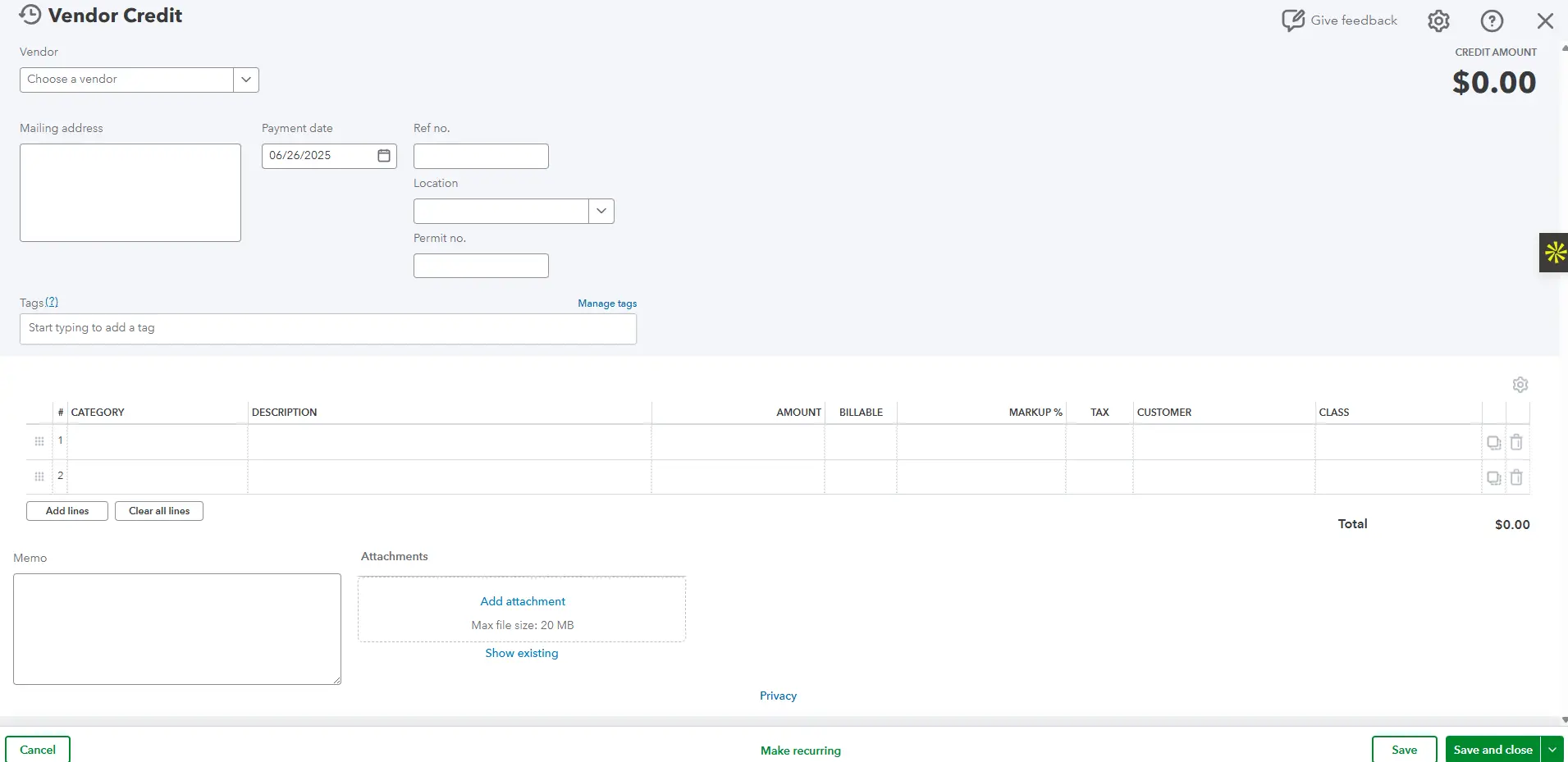
- Save the Vendor Credit: Once all details are accurately entered, click “Save and close” or “Save and new” if you have more credits to enter.
Congratulations! You’ve successfully entered the vendor credit into QuickBooks Online. It now exists within your QBO system as an outstanding credit with that specific vendor. It won’t disappear!
Step-by-Step Guide: Applying a Vendor Credit to a Bill in QuickBooks Online
Now that the credit is recorded, it’s time to put it to work! This is where you reduce a future bill from that vendor using the available credit.
Here’s how to apply the vendor credit:
- Navigate to Pay Bills:
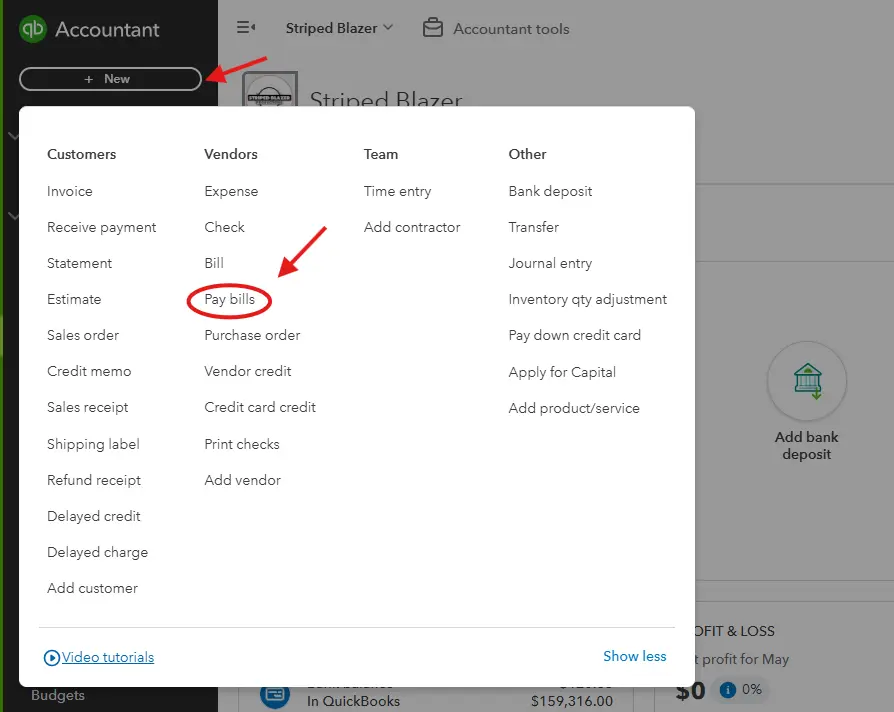
- From your dashboard, click the “+ New” button again.
- Under “Vendors,” select “Pay Bills.”
- Alternatively, you can go to Expenses in the left-hand navigation bar, then select Vendors, find the specific vendor, and from the “New Transaction” dropdown, select “Pay Bill.”
- Select the Bill(s) to Pay:
- On the “Pay Bills” screen, you will see a list of your outstanding bills.
- Manually Apply the Vendor Credit:
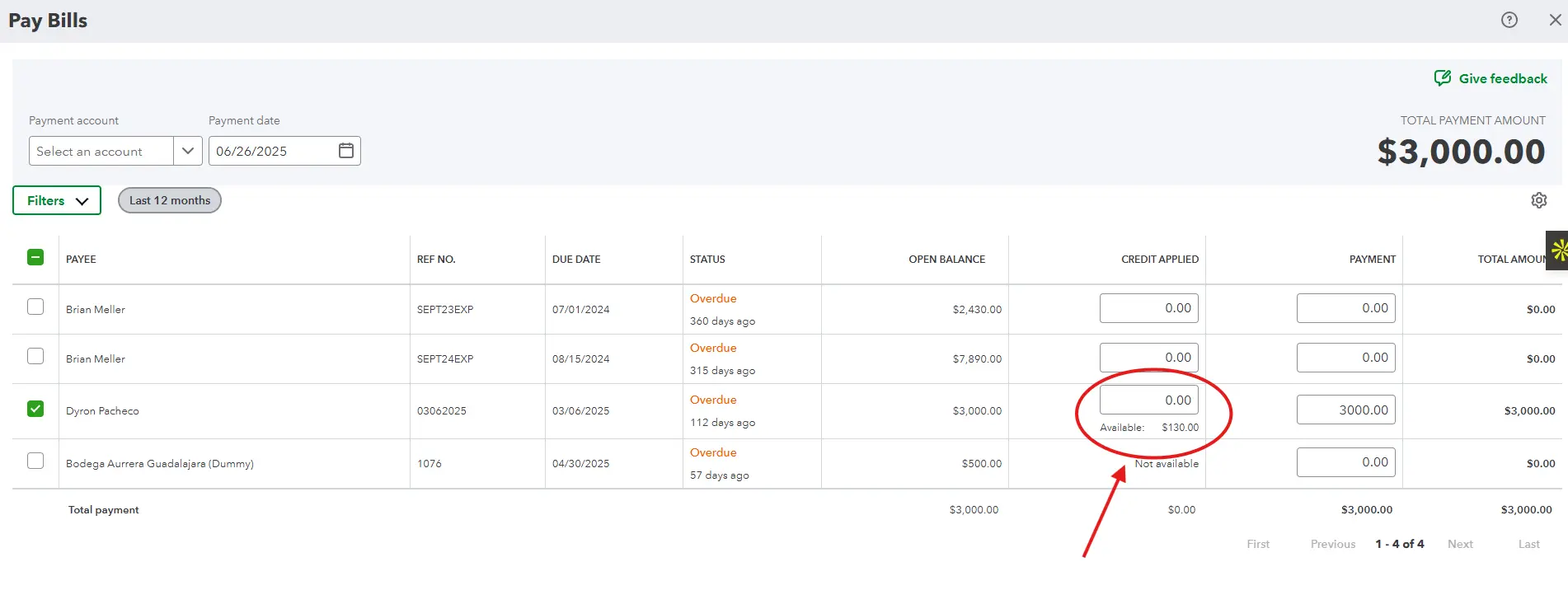
- While QuickBooks Online shows you the “Credit Applied” column, it doesn’t automatically input the available credit. You will need to manually enter the amount of the credit you wish to apply to each specific bill.
- In the “Credit Applied” column, for the relevant bill(s) from the vendor, manually type in the amount of the available vendor credit you want to use.
- As you enter the credit amount, you’ll see the “Payment” amount for that bill automatically adjust.
- Review the Payment Details:
- After manually applying the credit, QuickBooks Online will adjust the “Payment” amount for the selected bill(s) by subtracting the applied credit.
- For example, if you have a $3,000 bill and you manually enter a $130 vendor credit in the “Credit Applied” field, the “Payment” amount for that bill will automatically adjust to $2,870.
- Payment Account: Choose the bank account or credit card account you will use to pay the remaining balance (if any) of the bill.
- Payment Date: Confirm the date you are making this payment.
- Make the Payment:
- Once you’ve reviewed everything and are satisfied with the applied credit and the remaining payment amount, click “Save and close” or “Save and print” (if paying by check).
Voila! The vendor credit has now been successfully applied to your bill, reducing your out-of-pocket payment and accurately reflecting your true financial obligation.
Common Pitfalls and Troubleshooting When Applying Vendor Credits
Even with clear steps, sometimes things don’t go as planned. Here are some common issues and how to resolve them:
- “My Vendor Credit Isn’t Showing Up When I Go to Pay Bills!”
- Check the Vendor Name: This is the #1 reason. The vendor credit MUST be entered for the exact same vendor name as the bill you’re trying to pay. Even a slight spelling difference or an extra space can prevent QBO from linking them.
- Check the Credit Date: Ensure the vendor credit’s date is on or before the date you are making the bill payment. If the credit is dated after the bill payment, QBO won’t apply it automatically.
- Is it Already Applied? Go to the vendor’s transaction history (Expenses > Vendors > Select Vendor). Check if the credit has already been applied to another bill by mistake.
- Was the Credit Entered Correctly? Double-check that you indeed saved the vendor credit in the first place by reviewing the vendor’s transaction history.
- “I Accidentally Applied a Vendor Credit to the Wrong Bill!”
- Mistakes happen! Go to the bill payment transaction where the credit was incorrectly applied.
- You can usually find this by going to Expenses > Vendors, selecting the vendor, and then locating the specific bill payment.
- Click on the payment entry to open it. You should see a section showing the applied credit. Uncheck the box next to the credit, or adjust the amount.
- Important: You might need to delete the payment and re-enter it correctly if the option to simply unapply isn’t clear. Always consult your accountant or a QuickBooks expert if unsure before deleting transactions.
- “What if the Vendor Credit is Larger Than the Bill I’m Paying?”
QuickBooks Online handles this seamlessly. If you have a $100 credit and a $70 bill, QBO will apply $70 of the credit, and the remaining $30 credit will stay on file with that vendor. You can apply it to the next eligible bill from that vendor until it’s fully used.
- When NOT to Use Vendor Credit (Common Misunderstandings):
- Refund from Vendor to Bank Account: If a vendor sends you cash or direct deposit back into your bank account, you do not use a vendor credit. Instead, you record this as a Bank Deposit in QuickBooks Online, assigning it to the appropriate income or expense account (often, you’d deposit it back to the original expense account to offset the initial cost). A vendor credit is for future offsets, not actual money received.
- Paying a Bill: A vendor credit is received from a vendor; it’s not how you pay a bill. You pay bills using “Pay Bills” and selecting a bank account or credit card.
Best Practices for Managing Vendor Credits in QuickBooks Online
To keep your books tidy and your finances clear, incorporate these best practices:
Enter Credits Immediately: As soon as you receive a credit memo or notification from a vendor, enter it into QuickBooks Online. Don’t let it sit.
Keep Excellent Records: Always save the original credit memo, return slip, or email confirmation from the vendor. Attach these documents to the vendor credit entry in QBO using the attachment feature. This provides an invaluable audit trail.
Reconcile Regularly: When you reconcile your bank accounts, cross-reference any payments made to vendors with the bills and applied credits in QBO. This helps catch discrepancies early.
Review Vendor Balances Periodically: Every quarter or month, review your Accounts Payable Aging Report. If you see negative balances for vendors, it indicates an outstanding vendor credit that needs to be applied or reconciled.
Communicate with Vendors: If a credit is outstanding for a long time, or if there’s a discrepancy, don’t hesitate to reach out to your vendor to clarify.
Why Accurate Vendor Credit Management Matters for Your Business
Mastering how to apply vendor credit in QuickBooks Online isn’t just about ticking off a bookkeeping task; it’s about strategic financial management. When you confidently handle these details:
You save money: Every credit applied is a dollar not spent from your bank account.
You gain accurate cash flow insights: Your financial reports reflect your true liquidity.
You reduce financial stress: No more guessing games about what you owe or what’s owed to you.
You make better decisions: With clear financial data, you can plan more effectively, identify savings, and allocate resources wisely.
This level of detail and precision is exactly what transforms bookkeeping from a chore into a powerful tool for business growth and peace of mind.
Ready to Reclaim Your Time, Peace of Mind, and Financial Clarity?
We get it. Even with a comprehensive guide, the sheer volume of transactions, the need for meticulous detail, and the constant balancing act can feel overwhelming. Maybe you have a backlog of vendor credits, confusing reconciliations, or simply don’t have the time to dedicate to the nitty-gritty of QuickBooks Online.
That’s where cloud5 accounting steps in.
We specialize in helping small businesses like yours by taking over your QuickBooks Online bookkeeping tasks, providing expert clean-up and catch-up services, and ensuring your financials are accurate, up-to-date, and clear. We handle these details, like applying vendor credits, so you don’t have to, freeing you up to focus on what you do best: running your business.
Imagine having a dedicated team ensuring every vendor credit is applied, every bill is paid correctly, and your financial reports are always ready and understandable. That’s the peace of mind cloud5 accounting delivers.
Stop leaving money on the table. Stop stressing about your books. Contact us today for a free consultation and discover how we can help you gain back time, peace of mind, and true financial clarity.
Conclusion
Applying vendor credits in QuickBooks Online is a fundamental skill that every small business owner should master. By following these specific, actionable steps, you can ensure you’re maximizing your savings, maintaining accurate financial records, and avoiding unnecessary overpayments.
Remember, clear books lead to clear decisions. If the complexity ever feels too much, know that cloud5 accounting is here to be your trusted partner, transforming your QuickBooks Online challenges into seamless, stress-free solutions. You deserve the confidence that comes with well-managed finances.