If you’re entering the same bills, invoices, or journal entries every month in QuickBooks Online, you’re wasting time. QuickBooks has a feature called Recurring Transactions (previously known as “memorized transactions”) that can automate those repetitive tasks saving you time and reducing errors.
Here’s how to set them up and use them effectively.
What Are Memorized Transactions in QuickBooks Online?
Memorized transactions in QuickBooks Online are templates you can create for any transaction you enter on a regular basis. Instead of retyping the same info every month, QuickBooks will remember and handle it for you.
There are three types of recurring transactions:
-
Scheduled: QuickBooks creates the transaction automatically on a set schedule.
-
Reminder: You get a prompt to review and approve the transaction before it posts.
-
Unscheduled: A reusable template you can manually open and use when needed
Why Use Them?
Here’s what recurring transactions help with:
-
Save time on data entry.
-
Avoid errors by using the same details every time.
-
Stay organized with consistent categories and amounts.
-
Improve forecasting by keeping recurring expenses and income accurate.
-
Reduce stress by not having to remember what’s due.

Common Transactions You Can Memorize
| Expenses | Income | Journal Entries |
|---|---|---|
|
Rent or mortgage Utility bills (use Reminders if the amount changes) Software subscriptions Loan payments Insurance premiums |
Monthly invoices for retainer clients Rental income Subscription or membership fees |
Monthly depreciation Accruals or prepayments |
How to Set Up Memorized Transactions In QuickBooks Online
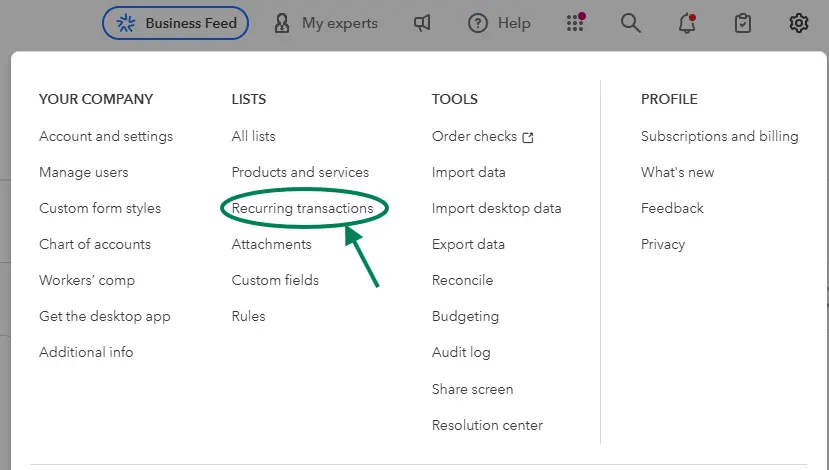
Step 1: Open the Recurring Transactions Page
-
Click the Gear icon (⚙️) in QuickBooks Online.
-
Under Lists, select Recurring Transactions.
Step 2: Create a New Template
You can start from scratch or convert an existing transaction.
Option A: From Scratch
-
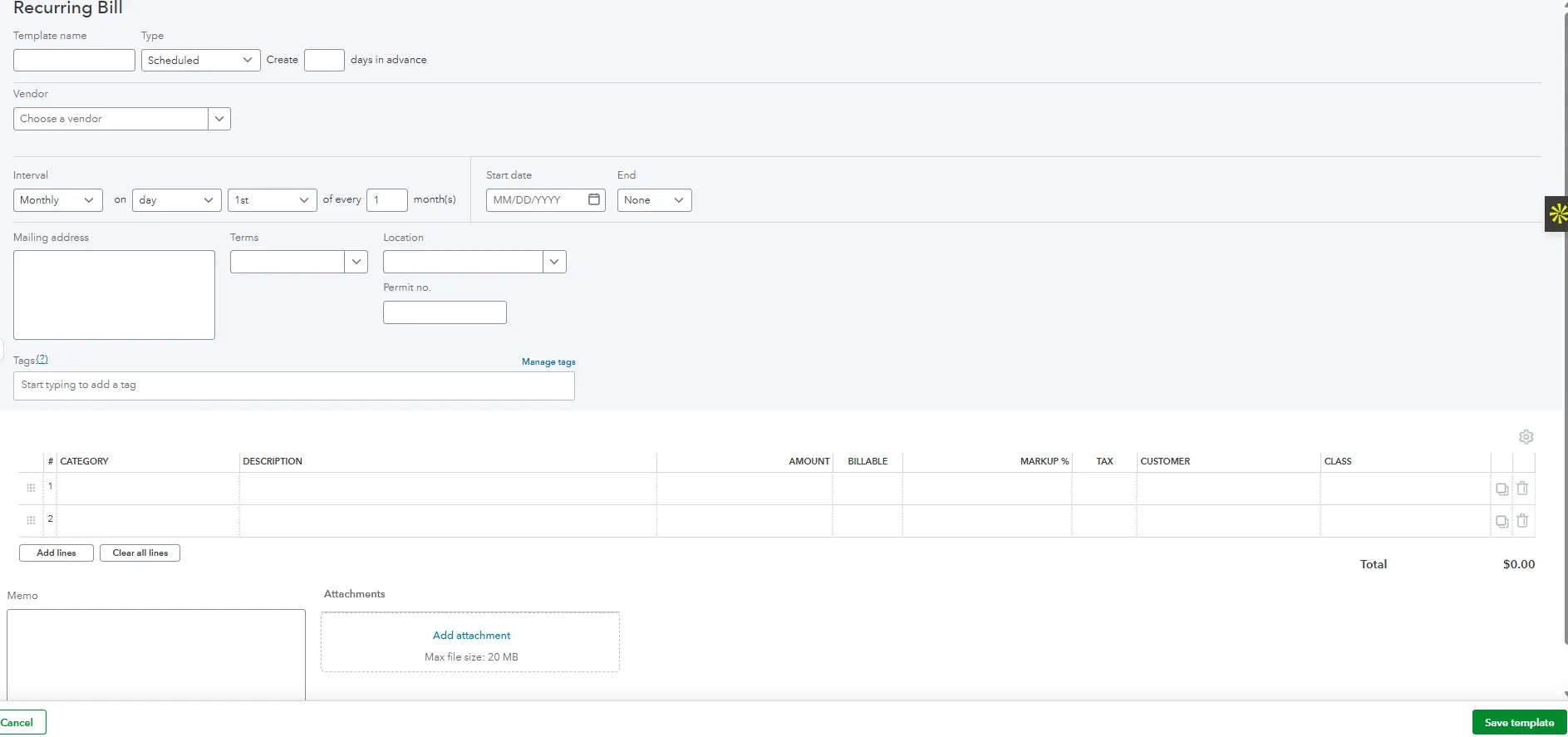
Click New.
-
Choose the Transaction Type (invoice, expense, journal entry, etc.).
-
Name your template (e.g., “Monthly Rent” or “Client A – Retainer”).
-
Choose the Type:
-
Scheduled
-
Reminder
-
Unscheduled
-
-
Set the schedule and fill out the transaction details (payee, amount, account, etc.).
-
Click Save Template.
Option B: From an Existing Transaction
-
Open a past transaction.
-
Click Make Recurring at the bottom.
-
Fill in the template info as above.
-
Save it.


Tips to Get the Most from Recurring Transactions
-
Use reminders for bills that change each month
This gives you flexibility while still saving time. -
Stick to fixed amounts for scheduled templates
Use this for predictable costs like subscriptions or rent. -
Name your templates clearly
For example:Monthly – Adobe SubscriptionorClient A – Retainer Invoice. -
Review your templates every quarter
Prices and vendors change — make sure your templates stay accurate. -
Watch for duplicates
Avoid manually entering something that’s already automated.
Common Mistakes (And How to Avoid Them)
| Mistake | Solution |
|---|---|
| Amount changed but template didn’t | Review and update templates regularly |
| Wrong account or category | Double-check setup the first time |
| Duplicate transactions | Match entries in your bank feed to prevent overlaps |
| Automating variable bills | Use “Reminder” instead of “Scheduled” |
Conclusion
Memorized transactions in QuickBooks Online are a simple but powerful way to save time and stay organized. Even automating just a few frequent entries can make your bookkeeping easier and more accurate.
Take 15 minutes this week to set up one or two recurring transactions. It’s a small step that pays off every month.