During QuickBooks Online cleanups, one issue shows up again and again:
Invoices appear on the A/R Aging report as overdue,
but the client insists they have already been paid.
After digging in, you discover what happened:
The deposit was added directly from the bank feed and categorized to income instead of being matched to the outstanding invoices.
And to make things worse, the month has already been reconciled.
If you delete that deposit, you will throw off your reconciliation and have to redo the reconciliation.
Redoing the reconciliation creates additional unnecessary work.
Fortunately, there’s a clean way to fix this without undoing your bank reconciliation.
What Causes This Issue
This usually happens when:
- A deposit appears in the bank feed.
- Instead of clicking Match, the user clicks Add or Categorize.
- The deposit is coded directly to an income account (often “Uncategorized Income”).
- The invoices remain open in Accounts Receivable because they were not applied to the deposit.
- The month gets reconciled and every things clears off the bank reconciliation just fine.
Result:
- Income is technically correct under cash basis not not accrual basis.
- Bank balance is correct.
- But the A/R Aging report is wrong because it is still showing customer invoices that were paid as unpaid.
You now have:
- Overstated Accounts Receivable.
- Paid invoices still showing as outstanding.
The Goal
We want to:
- Clear the invoices from A/R.
- Keep the reconciled deposit intact.
- Avoid undoing reconciliation.
- Maintain clean financial statements
Here’s how.
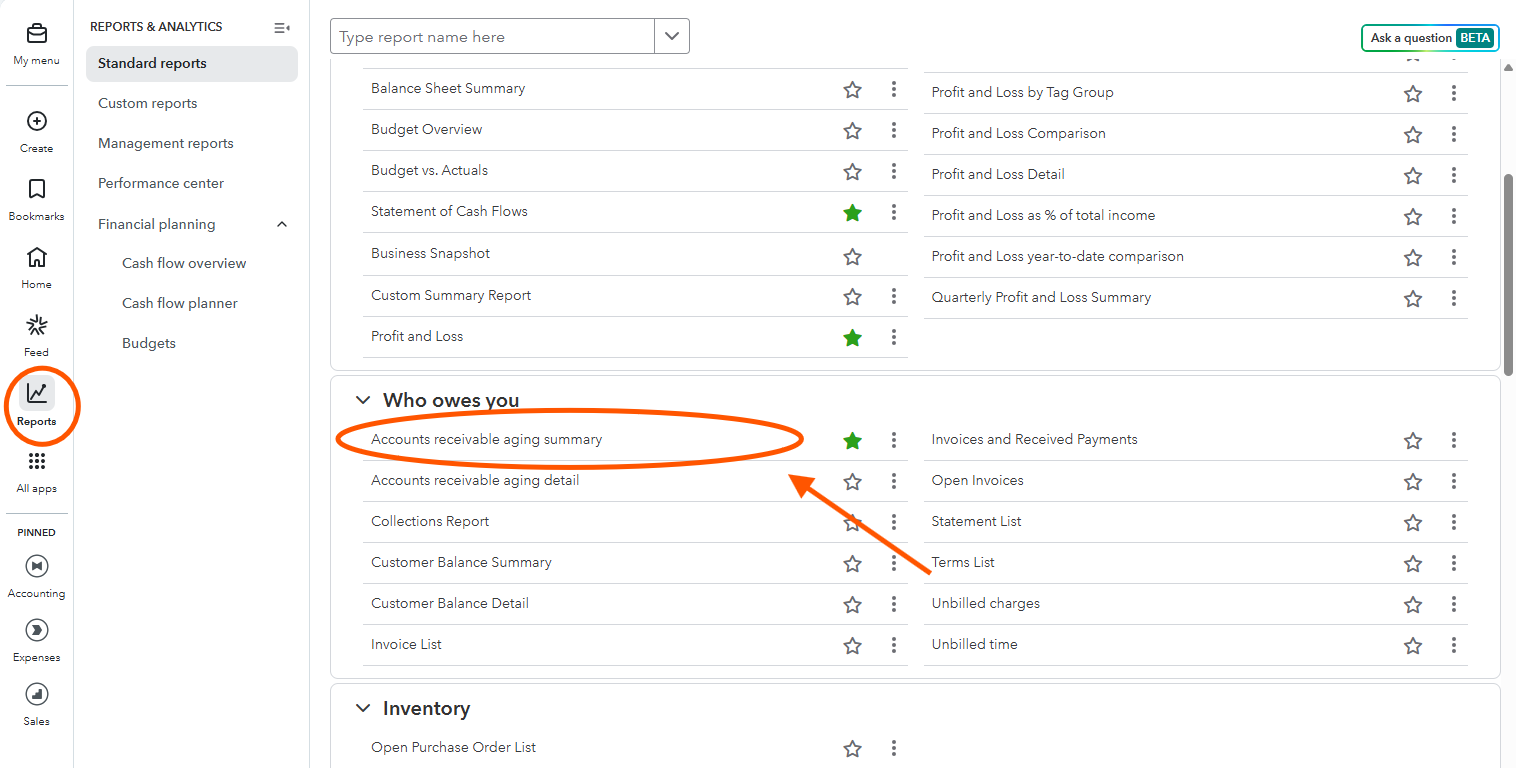
Step 1: Identify the Outstanding Invoice(s)
Go to:
Reports → A/R Aging Summary (or Detail)
Locate the invoices that make up the deposit amount.
Step 2: Open the Invoice(s) and Receive Payment to the Undeposited Funds Account
Click into the first invoice.
Select Receive Payment.
Important settings:
- Confirm the correct payment date (use the actual deposit date).
- Under Deposit To, select:
👉 Undeposited Funds
NOT the bank account
This is critical.
Why?
Because the bank deposit already exists. We are not creating a new bank deposit — we are preparing payments to attach to the existing one.
Click Save and Close.
Step 3: Repeat for the Second Invoice (if a second invoice was paid/included in the deposit)
Open the next invoice if there is one.
Click Receive Payment.
Again:
- Use the correct date.
- Deposit to Undeposited Funds.
- Save and close.
Now:
- Both invoices are marked paid.
- They are sitting in Undeposited Funds.
- They are removed from A/R Aging.
No bank activity has changed yet
Step 4: Edit the Existing Reconciled Deposit
Now go to:
Accounting → Chart of Accounts → Bank Register
(or find the deposit directly)
Open the reconciled deposit. You may have to refresh the page to get them to show up.
You will see a single income line (e.g., “Uncategorized Income”) for $3,000
Now:
- Unselect the income line inside the deposit.
- Scroll up to Select the invoice payments included in this deposit that we just created.
- You should now see the two payments sitting in Undeposited Funds if the payment was for two invoices. If only one invoice was paid then you would just see the one invoice.
- Select the payments.
The total should equal the original deposit amount.
Delete the original deposit to uncategorize income or other income account that did include the paid invoice.
Click Save and Close.
What Just Happened?
- The deposit amount did not change.
- The reconciliation status remains intact.
- The income is now tied correctly to invoices.
- Accounts Receivable is cleared properly.
- Financial reports are accurate.
No reconciliation undo required.
Why This Method Works
- The bank deposit already cleared the bank and was reconciled.
- We’re not changing the bank amount.
- We’re simply replacing:
“Income line” with “Customer payments linked to invoices” - The total stays the same.
- That’s why reconciliation remains unaffected.
What NOT To Do
❌ Don’t delete the reconciled deposit
❌ Don’t undo reconciliation unless absolutely necessary
❌ Don’t receive payment directly to the bank account
❌ Don’t leave invoices open if they’ve been paid
The key is routing payments through Undeposited Funds so they can be applied to the existing deposit.
When You Should Undo Reconciliation Instead
You may need to undo reconciliation if:
- The deposit amount itself is wrong.
- The deposit date is incorrect.
- There are multiple structural errors in the period.
But if the only issue is improper matching, this cleanup method is the safest solution.